
InQorix for Windows: User Guide
Installation, models, files, settings, and troubleshooting for InQorix 0.7.
Getting-started guide · Downloads and release requirements
Select a screenshot to enlarge it. Press Esc or choose Close image to return to the guide.
Contents
Web edition for InQorix 0.7. Screenshots show earlier builds and may contain older names or version numbers. With a local model and online features off, chat runs on your computer. Company servers, InRag, web search, model downloads, MCP tools, code runs, and generated previews can use the network. See the app data-flow table.
Release requirements: InQorix 0.7 supports Windows 11, 64-bit x64. Windows 10 is not offered.

Ask in plain language. Get answers from your documents, the web, or the model itself, and check every source.
The AI runs on your own computer, or on a company model server you connect to. Connected features send data to the services you choose; see the app data-flow table.
Get started · Ask a question · Get a model · Company server · Settings · Problems
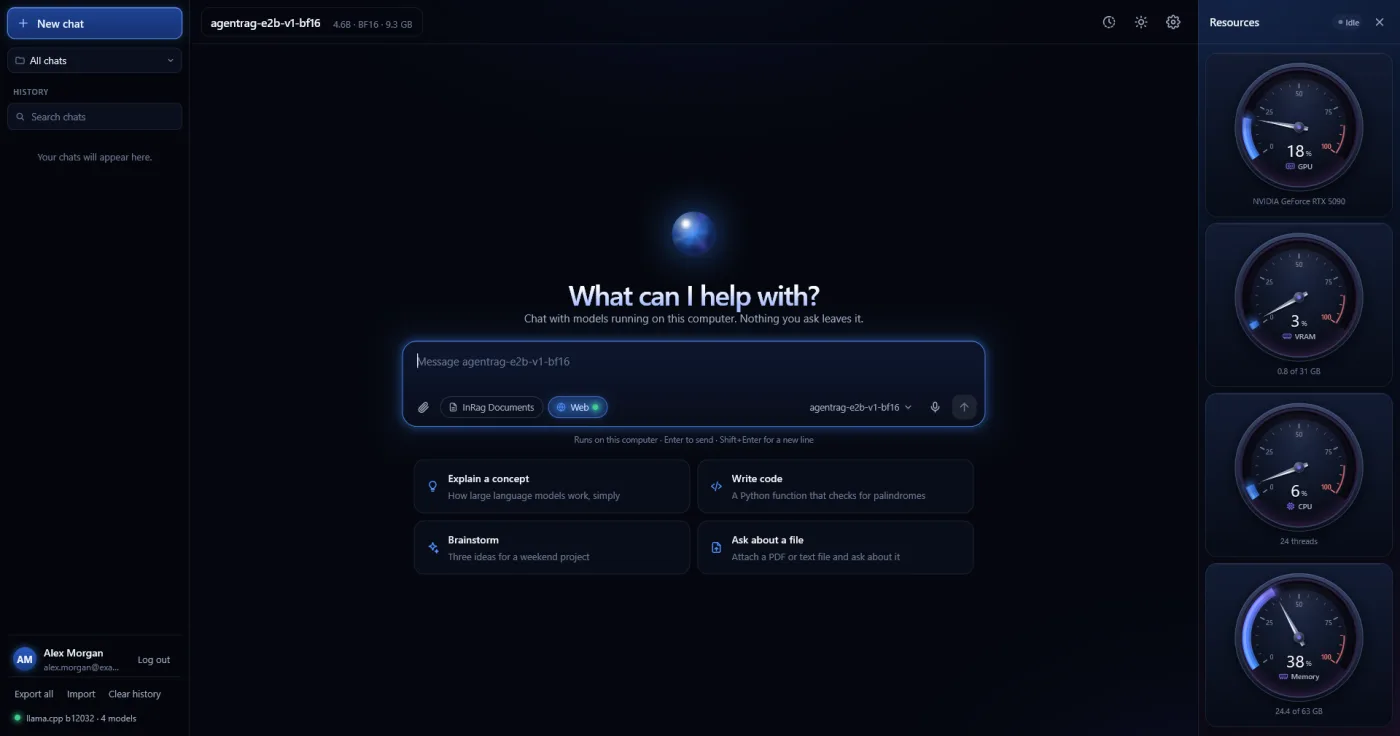
Earlier-build example; displayed names and versions are not release specifications.
Why InQorix
🔒 Private by designWith a downloaded local model and online features off, chat runs on this computer without an internet connection. A company model server receives the conversation and context needed to answer; other connected features can also send data. |
📚 Answers you can checkTurn on InRag Documents to answer from your organization's documents, or Web for current information. Every answer that used them lists its SOURCES, with the exact passage behind each part. |
⚡ Nothing to set upNo WSL, Docker, Python or server to install. A built-in browser finds free models on Hugging Face, tells you which ones fit your computer, and installs the one you pick in one click. |
An AI model on its own only knows what it learned when it was made. That knowledge is frozen in time, and it has never seen your organization's policies, agreements, minutes or forms: asked about them, it can only guess, and its guesses can sound convincing. InQorix lets you choose, for each question, where the answer comes from:
| Switches in the message box | The answer comes from |
|---|---|
| InRag Documents on | Your organization's internal documents: the passages that match your question, quoted with their source |
| Web on | The web, for current or general information, with the pages it used |
| Both on | Your documents first; the web only when your documents have nothing on it |
| Both off | The model's own knowledge only, frozen at its training date |
When neither your documents nor the web has anything, the model says so before it answers from its own knowledge. If the question is one only your documents could answer, such as an amount on a statement or a date in a contract, the answer is just "I couldn't find this in your documents.": the model doesn't guess.
Part 1: Getting started
1. What your computer needs
| Windows | Windows 11, 64-bit x64 only |
| Memory | 16 GB or more is best. Small models (3 to 4 billion parameters) run with 8 GB |
| Graphics card | Optional, but much faster: any NVIDIA, AMD or Intel graphics card with Vulkan support (current drivers). The more memory it has, the bigger the models it can run quickly. Without one, models run on the processor, more slowly |
| Disk space | A few GB for each model (2 to 20 GB, depending on its size) |
| Previews | Microsoft Edge WebView2 Runtime on Windows 11 (for code runs, previews and PDF text) |
Tip: If your organization runs a company server (section 14), the models run there: your computer needs no graphics card and no disk space for models.
Before updating: export your chats first. Chat and settings preservation across updates has not yet been confirmed by release testing.
2. Start the app and create your account
Start InQorix from the Start menu or the desktop shortcut (the program file is OllamaChat.exe). The
app always opens with the login screen: you need an account to use it.
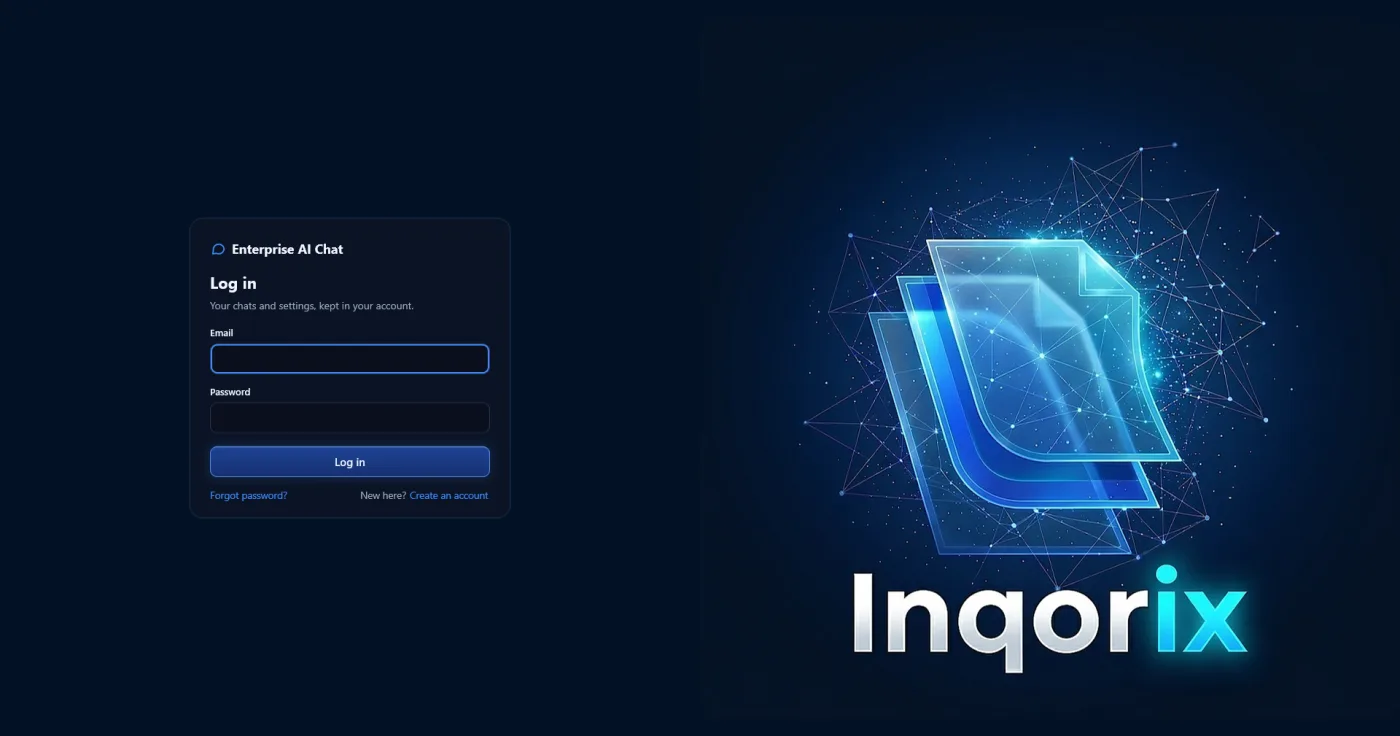
Earlier-build example; displayed names and versions are not release specifications.
The first time, create your account:
- Under the Log in button, next to New here?, click Create an account.
- Fill in Full name, Email and Password (twice, in Confirm password). The password needs at least 8 characters, with a number or a symbol.
- Click Create account. You're in straight away.
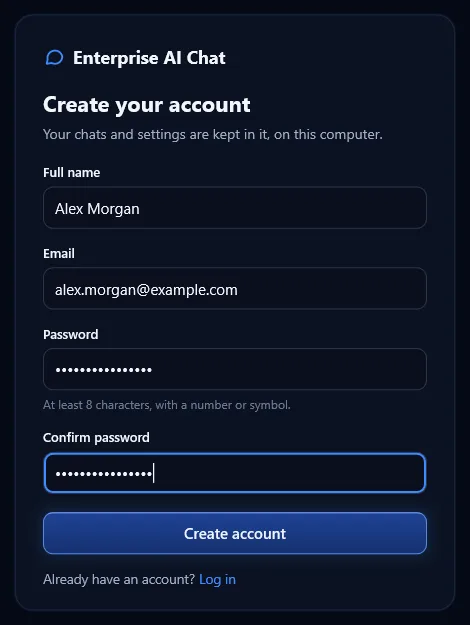
Earlier-build example; displayed names and versions are not release specifications.
The app sends no email: your email address is just your name for logging in, so no code or confirmation is needed. Your account is a profile on this computer. Accounts and chats do not sync between computers or follow you when you sign in elsewhere. The first time you log in to a new account, any chats and settings that were already on this computer move into it.
3. Log in and out
-
Log in: enter your Email and Password, and click Log in. You stay logged in on this computer for 30 days, even if you close the app.
-
Log out: at the bottom of the left sidebar, beside your name, click Log out (or Settings → Account & About → Log out). Logging out clears the active session's chat copy; the saved chats remain in this computer's local account database. Use your Windows sign-in to protect sensitive work on a shared computer.
-
Forgot your password? On the login screen, click Forgot password?. If you had typed your email on the login screen, it's filled in for you. Type a New password, type it again in Confirm new password, and click Set password and log in. This changes the local profile's password on this computer. If the screen says "There's no account for …", check that you typed the address you registered with.
-
Accounts keep chats separate; they aren't a security lock. Anyone using this computer can reset an account's password if they know its email. Protect sensitive work with your own Windows sign-in.
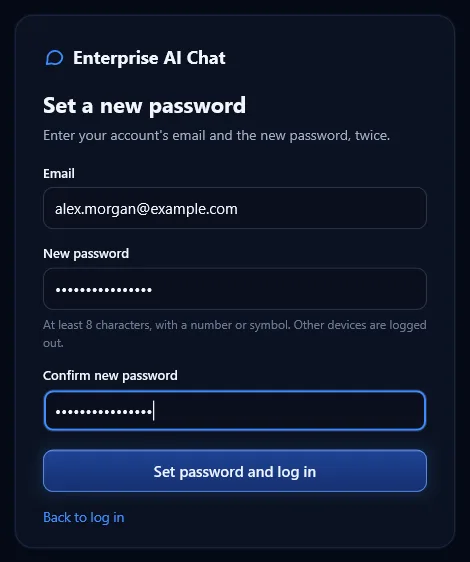
Earlier-build example; displayed names and versions are not release specifications. -
Change your password while logged in: Settings → Account & About. Enter your Current password, the New password and Confirm new password, then click Change password. This changes only the local profile on this computer.
4. Your first answer in four steps
- Get a model. Open Settings (the gear at the top right), then Discover, pick a model with a green Fits in the GPU's memory badge, and click Download (section 12). If your administrator has already added models, or you use a company server, skip this step.
- Close Settings (× or Esc) and click New chat.
- Type your question in the box under "What can I help with?" and press Enter.
- Read the answer as it's written. Turn on InRag Documents or Web in the message box when the answer should come from your documents or the web.
Part 2: Chatting
5. The window at a glance
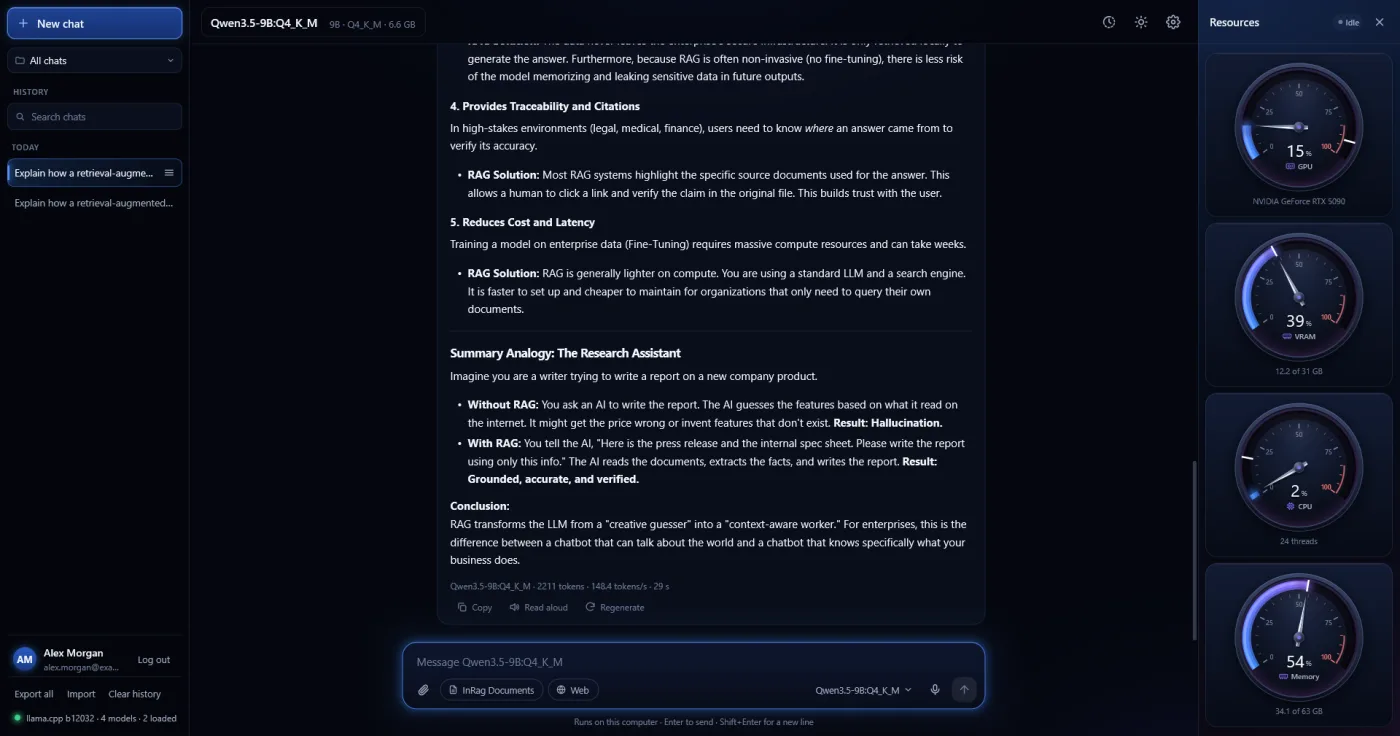
Earlier-build example; displayed names and versions are not release specifications.
| Where | What it's for |
|---|---|
| Left sidebar | New chat, the project picker (All chats), Search chats, and your past chats grouped by date. At the bottom: your name and Log out, then Export all, Import and Clear history, and the engine's status line |
| Top bar | The model that answers, with its size (for example 9B · Q4_K_M · 6.6 GB): click it to open Settings → Model & Answers with the model list already open. It says Choose a model when none is chosen yet, and Add a model when there are none. Then the Temporary chat button (clock), the theme button (sun or moon), and Settings (gear) |
| Middle | The conversation |
| Message box | Where you type. Its toolbar has: attach (paper clip), InRag Documents, Web, the model picker, the microphone, and Send (which turns into a red Stop while an answer is written) |
| Right panel | Resources: gauges for the GPU, its memory (VRAM), the processor (CPU) and the RAM (section 15) |
The status line at the bottom of the sidebar shows the engine that answers:
| Dot | Text | Meaning |
|---|---|---|
| Gray | Starting the engine… | The app has just opened; this takes a few seconds |
| Green | llama.cpp b12032 · 4 models · 1 loaded | Ready. Loaded models answer at once; the others load (a few seconds) when you ask them something |
| Green | Company server · 1 model | Answers come from your company's server (section 14) |
| Red | An error | The engine couldn't start, or the company server can't be reached: see section 25 |
On a new chat, the message box sits in the middle of the window under "What can I help with?", with four suggestion cards (Explain a concept, Write code, Brainstorm, Ask about a file). Click one to try it. After your first message, the box moves to the bottom. On a narrow window, the sidebar hides: open it with the ☰ button at the top left.
Two looks
The sun or moon button in the top bar (or Settings → General → Theme) switches between Dark blue and Classic (light). Your choice is remembered.
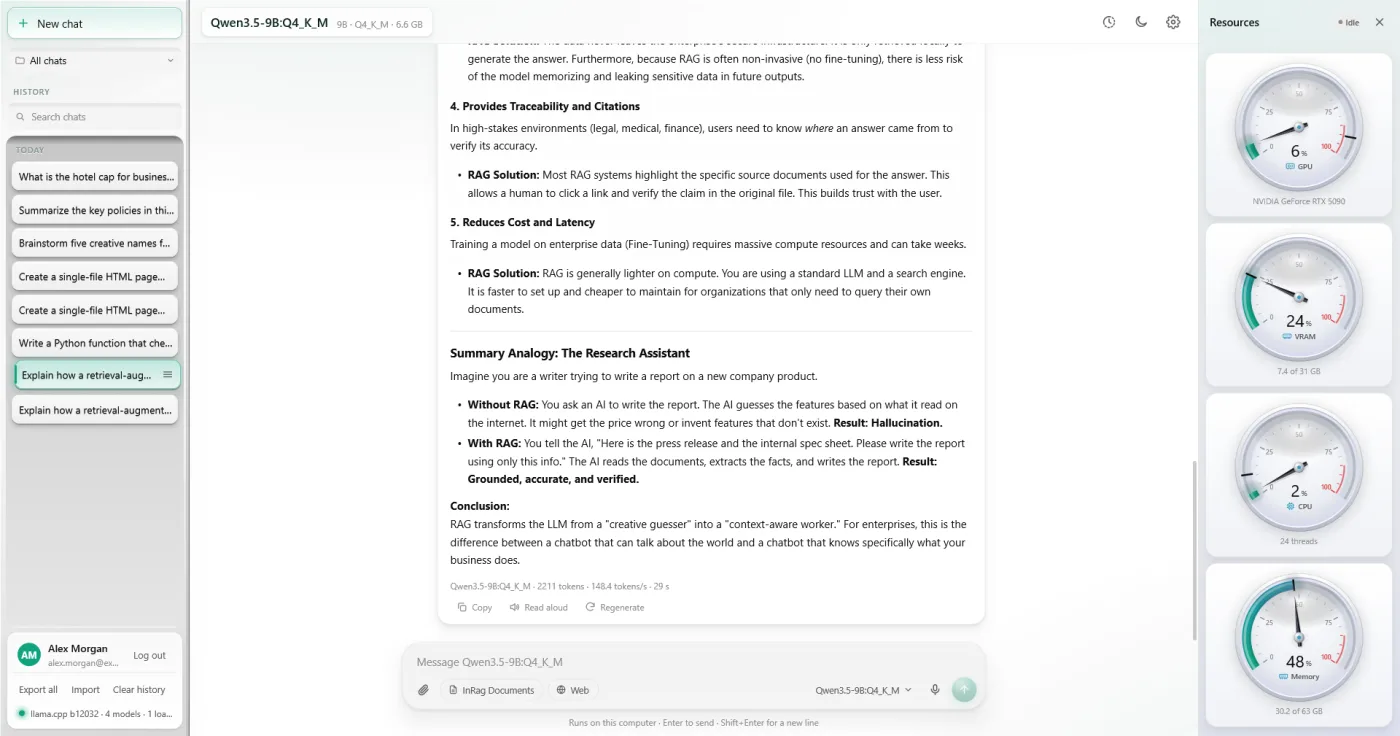
Earlier-build example; displayed names and versions are not release specifications.
6. Ask a question
- Type your question in the message box.
- Press Enter to send (Shift+Enter starts a new line). You can switch this to Ctrl+Enter in Settings → General → Send with.
- The answer appears word by word. To stop it early, click Stop or press Esc.
Under each answer, a small line shows the model, how many tokens it wrote, its speed (tokens per second) and the time it took.
Choose a model
The model picker in the message box lists your models (or the company server's). Different models are better at different things; each answer notes which model wrote it.
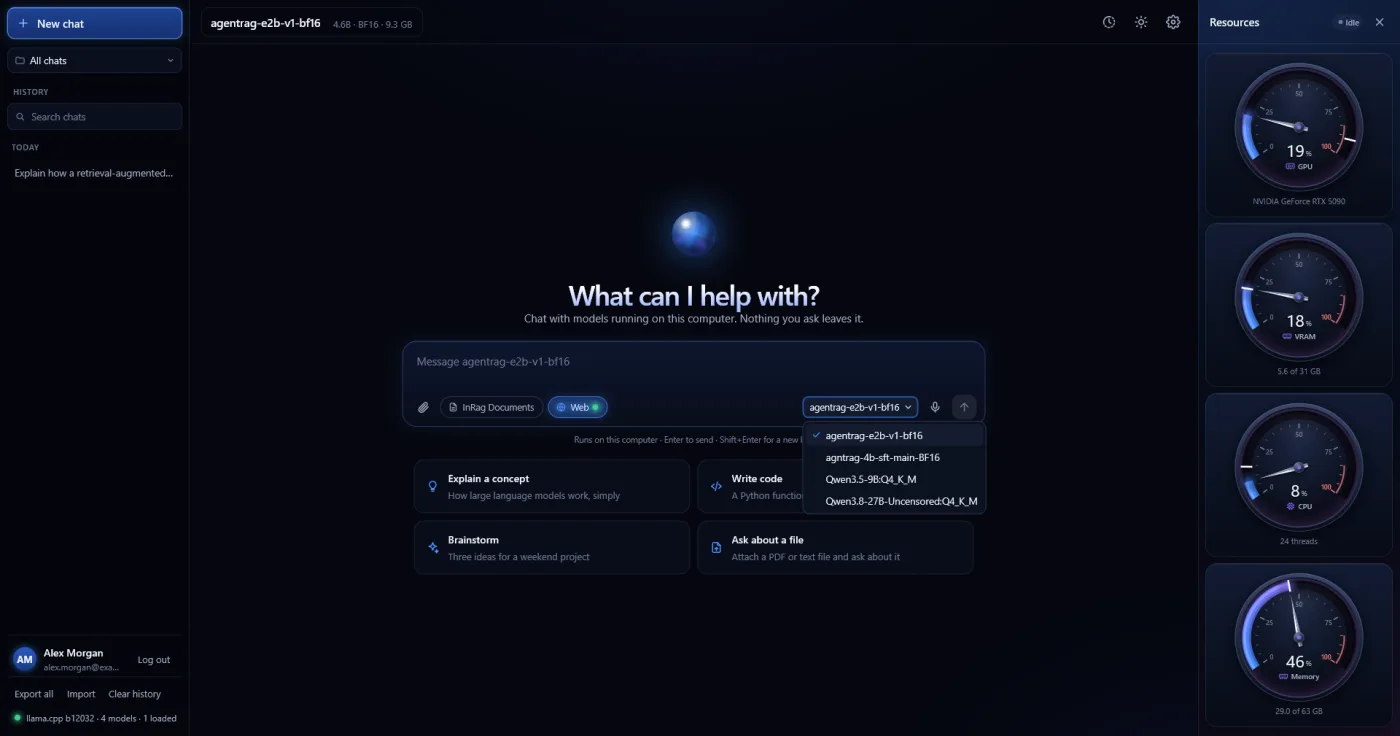
Earlier-build example; displayed names and versions are not release specifications.
The same list is in Settings → Model & Answers → Model that writes the answer (click the model in the top bar to open it there with the list open). It shows Choose a model until one is chosen, and its last item, Add another model…, opens Settings → Discover to get one.
Models that can use tools (such as qwen, granite or agntrag) can search your documents and the web while they answer. Models with vision can look at pictures.
Thinking models
Some models think before they answer. While they do, the answer shows Thinking…; afterwards the thinking is folded into a Thought for … panel above the answer: click it to read it.
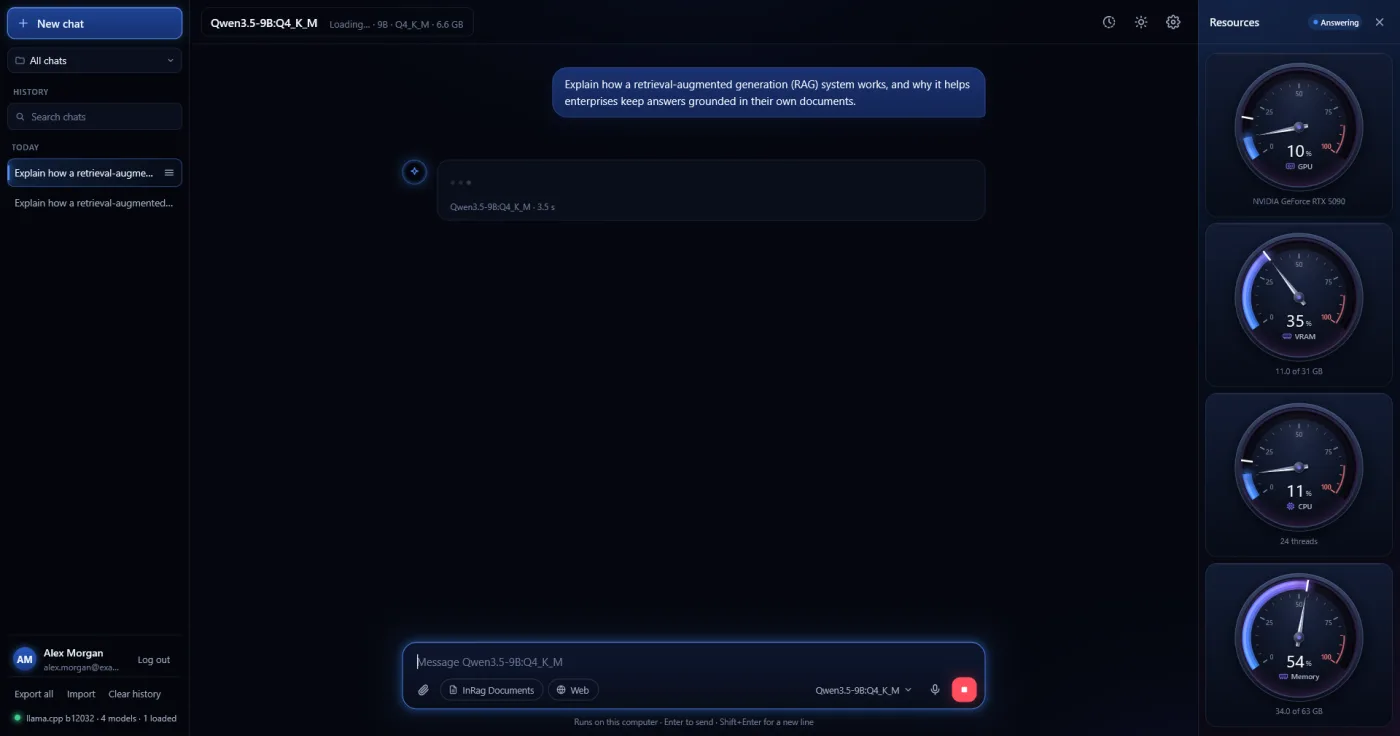
Earlier-build example; displayed names and versions are not release specifications.
- Turn thinking off in Settings → Model & Answers → Thinking: answers come sooner, but may be less careful.
- With InRag Documents on, models don't think unless you turn on Think when searching my documents (same page). In testing, thinking made answers from documents slower without making them more accurate.
- Thinking budget (same page) caps how long a model may think, from 512 to 8192 tokens.
- Small models sometimes get stuck, weighing the same choice over and over. The app notices: it stops the thinking and asks once more without it. The thinking panel then ends with "Stopped: the thinking was going in circles. Answered without thinking." An answer that starts repeating itself is cut off the same way, with "Stopped: the model started repeating itself."
Follow-up questions
Just keep typing in the same chat: the model sees the earlier questions and answers (Settings → Model & Answers → Earlier turns sent sets how many). For a new topic, click New chat (or press Ctrl+Shift+N): the answers will be better and faster.
Temporary chats
Click the clock button in the top bar before you start: the chat is marked Temporary and isn't saved to your history. Click the button again to leave it.
Dictation
Click the microphone and speak; your words are typed into the message box as you speak. Click it again (Stop dictating) when you're done, or just send. Dictation uses Windows' own speech recognition, on this computer. If it can't start, a message says why:
| Message | What to do |
|---|---|
| No microphone found | Plug in a microphone or headset, or turn it on in Windows Settings → System → Sound. Then click the microphone again: no need to restart the app |
| Dictation needs Windows speech recognition | Add a speech language in Windows Settings → Time & language → Speech |
| Dictation couldn't start | Check that apps may use the microphone: Windows Settings → Privacy & security → Microphone |
7. Read, check and reuse the answer
Answers are formatted: headings, lists, tables and code blocks.
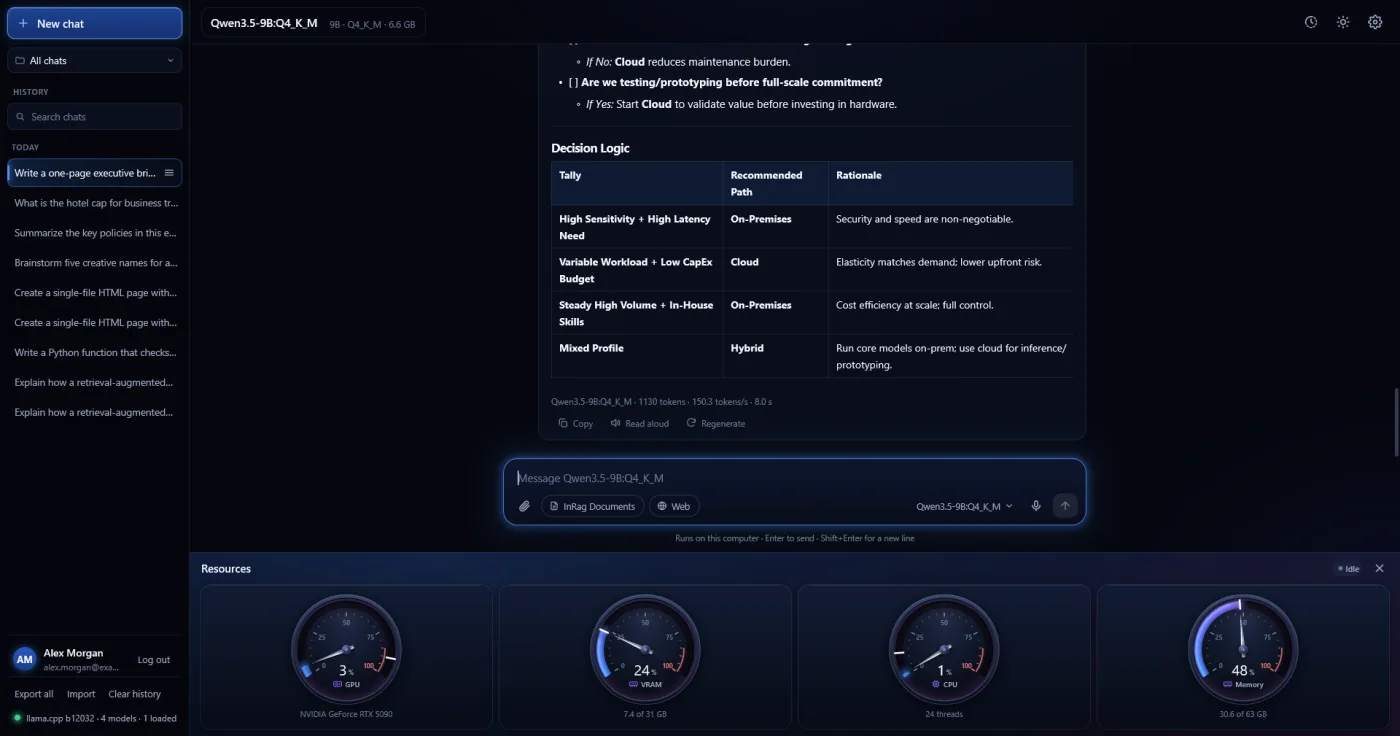
Earlier-build example; displayed names and versions are not release specifications.
Search steps. Each search the model made is shown in the answer as a row (Searched the web for "…", with the number of results). Click a row to see what it found.
Numbered citations. A number like [2] in the answer is a link: click it to jump to the passage or web page it came from.
SOURCES. Under an answer that used documents or the web, SOURCES lists everything it relied on. For each one, Show the passage shows the exact text, and clicking its name opens the document or web page.
Important: Always check important facts against the source. AI models can misread or combine things wrongly, even when they cite correctly.
Buttons under an answer
| Button | What it does |
|---|---|
| Copy | Copies the whole answer |
| Read aloud | Reads the answer with a Windows voice. Click Stop to stop |
| Regenerate | Answers again. The earlier answer is kept as a version |
| ‹ 2 / 3 › | Switches between the versions of an answer (Previous version, Next version) |
Your own questions have Copy and Edit. Edit lets you change a question and send it again; the earlier version, with the rest of the chat that followed it, is kept, and ‹ › switches between them.
Copying part of the text. Select text in the conversation with the mouse and press Ctrl+C, or right-click it and choose Copy. Code blocks have their own Copy button.
8. Attach files and pictures
Click the paper clip in the message box, drag files onto it, or paste them (Ctrl+V).
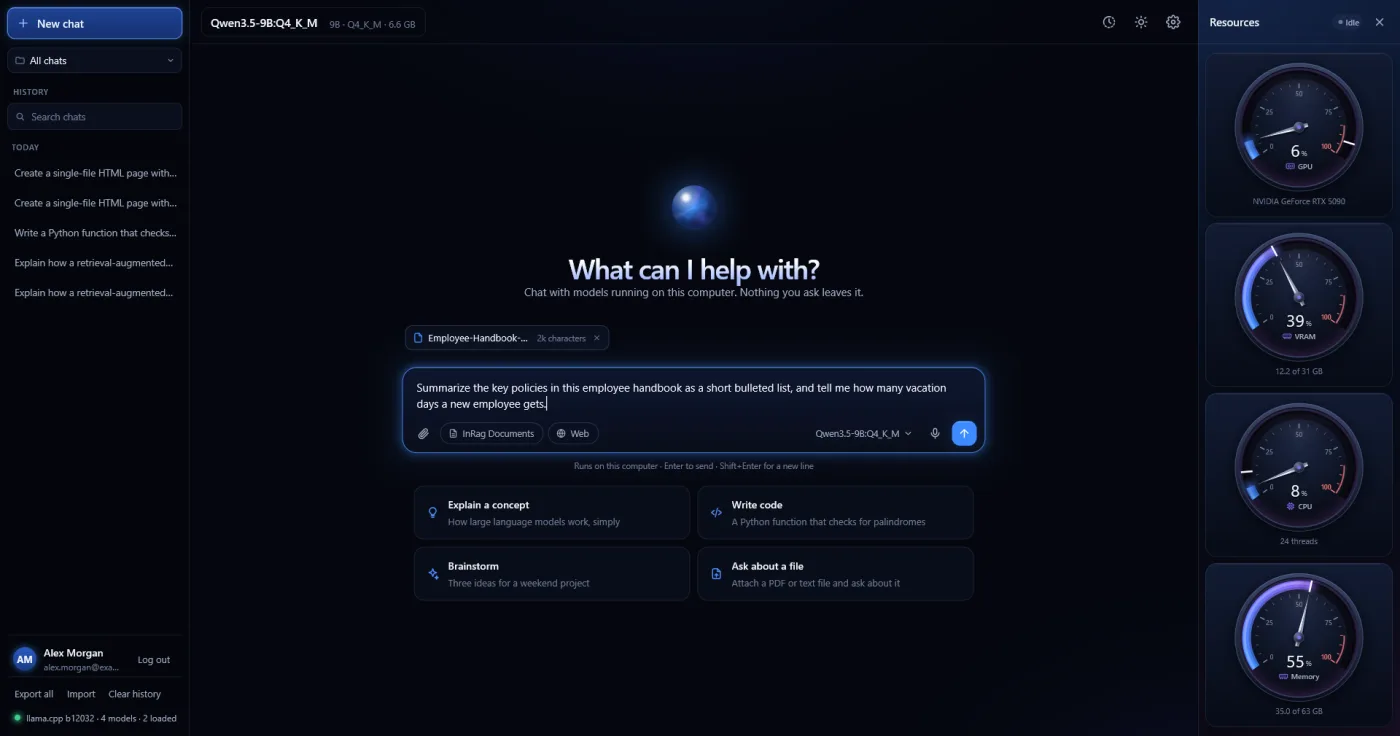 Earlier-build example; displayed names and versions are not release specifications. |
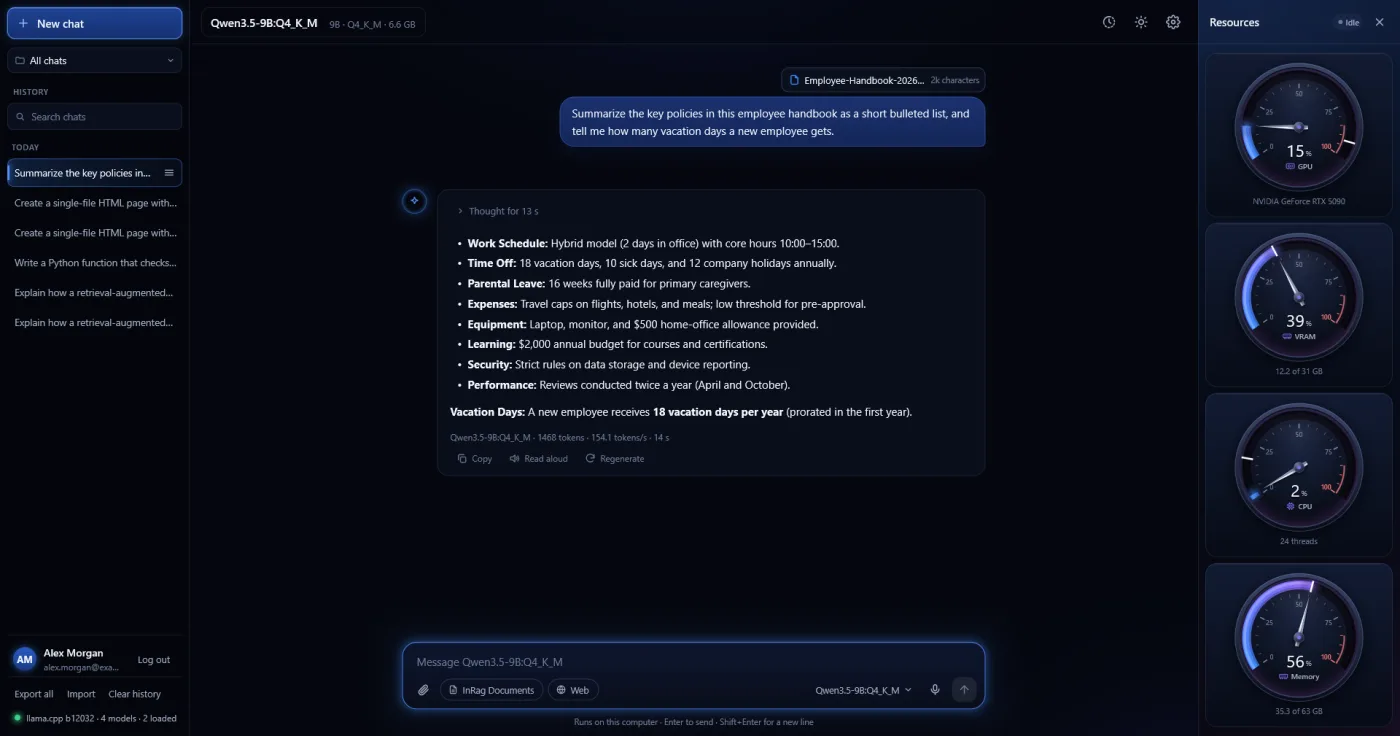 Earlier-build example; displayed names and versions are not release specifications. |
|
A handbook attached to the question |
The answer, from the file's text |
- Documents: Word (.docx, .doc), Excel (.xlsx, .xls), PowerPoint (.pptx, .ppt), RTF, PDFs (scanned ones too: their pages are read with Windows' text recognition), text, Markdown, CSV, JSON and code files. Excel sheets come through row by row, with their cells separated by tabs. Text recognition reads the languages installed in Windows (Settings → Time & language → Language); add Korean there to read scanned Korean documents. Their text is sent with your question (up to 200,000 characters per file), so you can ask "Summarize this" or "What does section 4 say about leave?". Long files need a longer Context length (section 13).
- Pictures (PNG, JPG, GIF, WebP, BMP): the model looks at them. This needs a model with the vision capability; with other models, the paper clip only takes files.
To remove an attachment before sending, click the × on it.
9. Code, previews and diagrams
Code and network access: Code runs and generated previews can make network requests. Review code before running it and pages before previewing them.
When an answer contains code, its block has buttons:
- Run (JavaScript and Python): runs the code inside the app and shows the output under it. JavaScript stops after 10 seconds, Python after 2 minutes. The Python runtime downloads from jsDelivr on first use, and packages may download when code uses them. Code and generated pages can also make network requests.
- Preview (HTML web pages, SVG pictures and Mermaid diagrams): shows the result in a panel beside the chat, with Code, Copy and Download. Drag the panel's edge to resize it (double-click to reset). Close or Esc closes it.
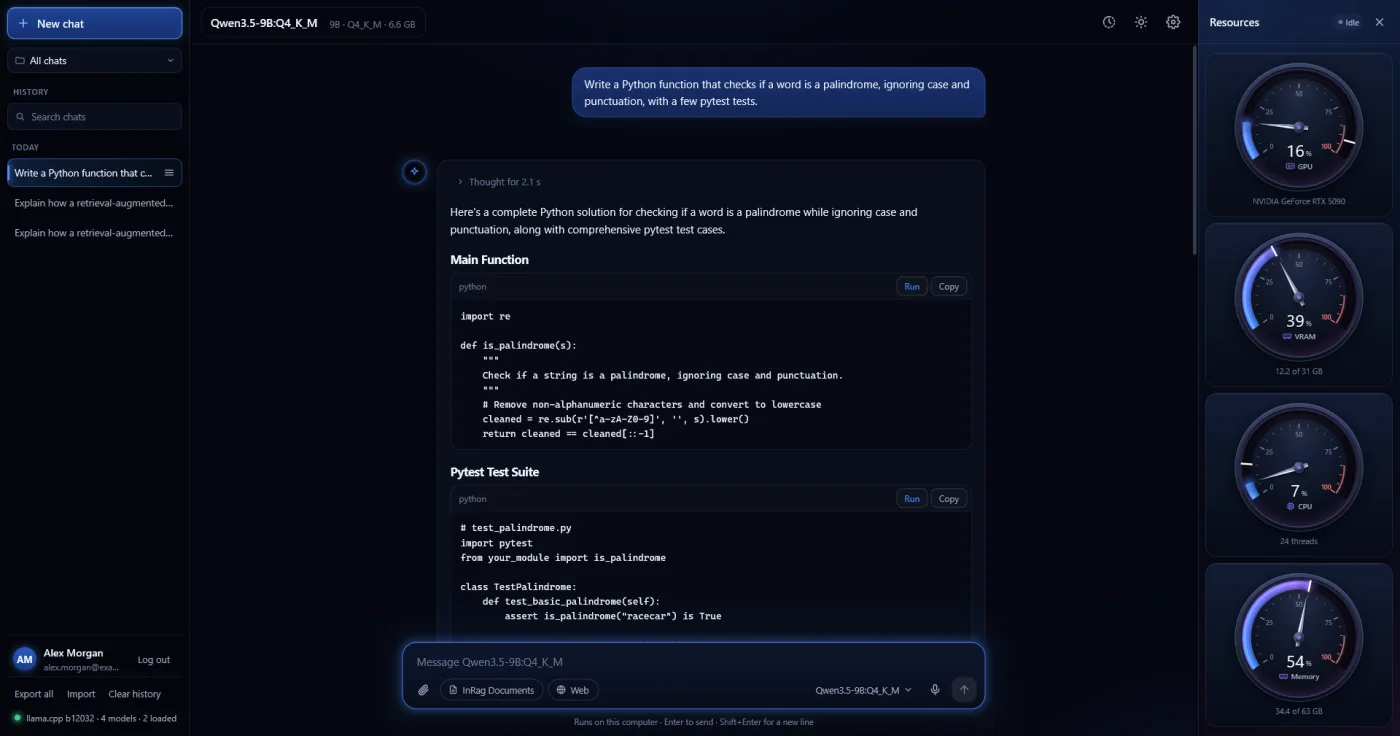
Earlier-build example; displayed names and versions are not release specifications.
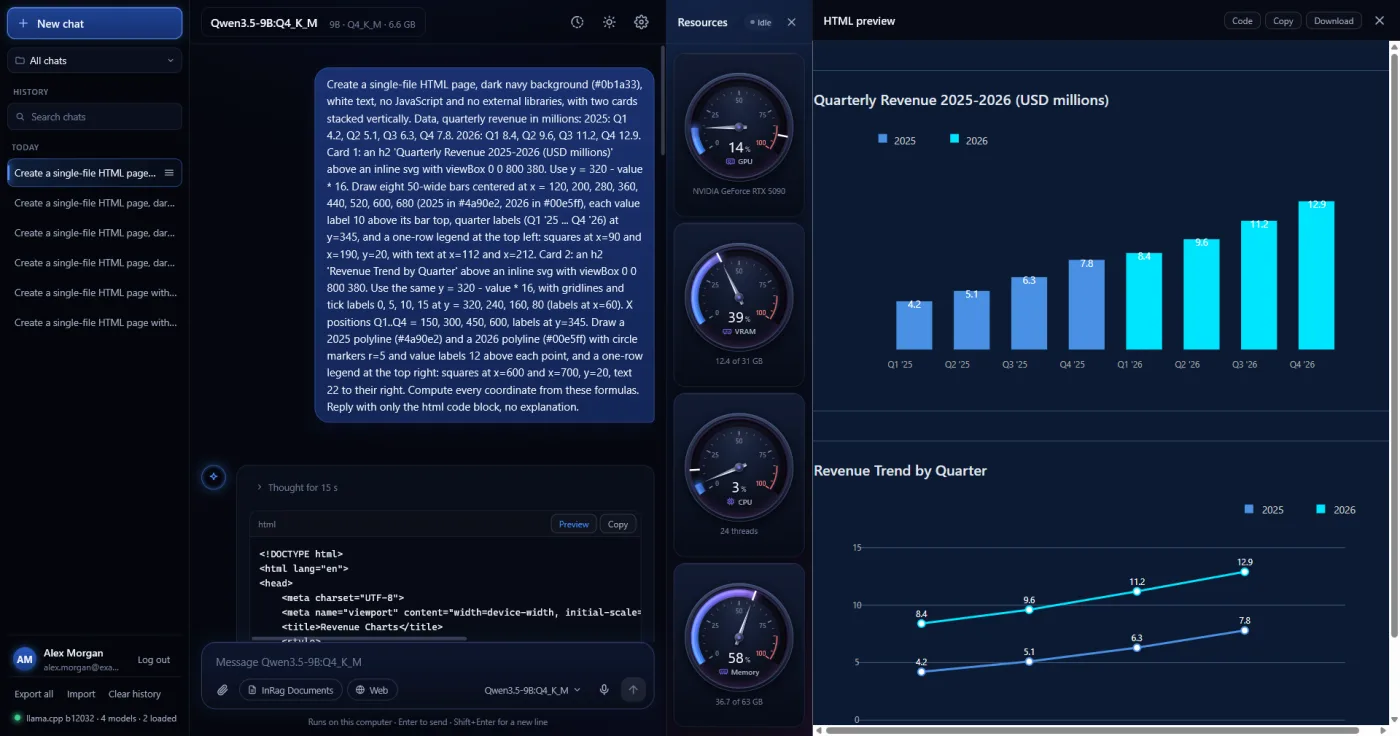 Earlier-build example; displayed names and versions are not release specifications. |
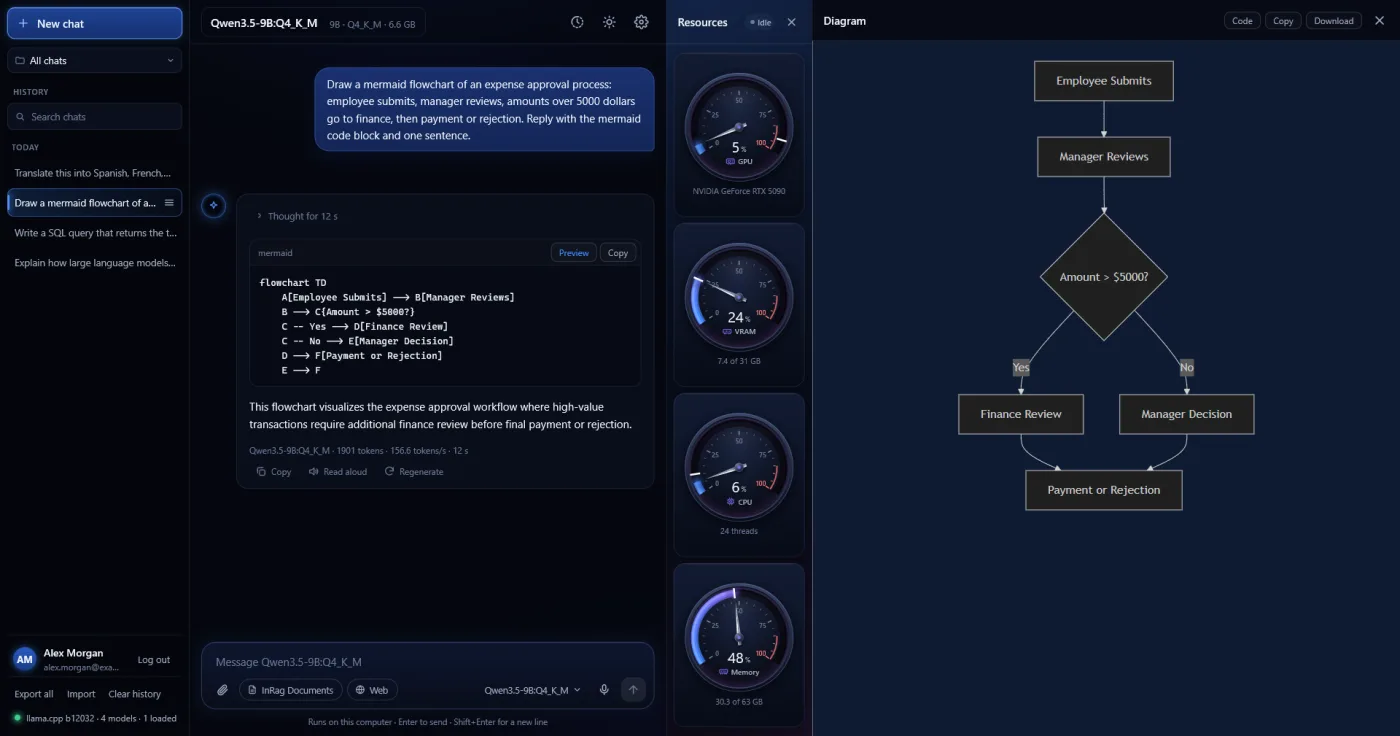 Earlier-build example; displayed names and versions are not release specifications. |
|
An HTML page with a bar and a line chart, previewed |
A Mermaid flowchart, previewed |
Note: Treat generated code and pages as executable content. Their network requests can send data to other services.
10. Answers from your documents
The InRag Documents switch in the message box lets the model search your organization's documents before it answers. When it's on, the switch is lit, with a green dot once the documents can be searched. The model looks up the passages that match your question, reads them, and answers from them, citing each one.
Documents are searched with InRag, Magicsoft's document search: it indexes your documents in collections. InRag can run on this computer or on your organization's file server or company server; your administrator tells you its address.
- It starts off each time the app opens. Clicking the switch turns it on and opens Settings → Documents, to connect to InRag (or turn it on there: Let the model search documents).
- When InRag isn't running at its address, the page says so, and explains that InRag is Magicsoft's document search for organizations, with a See it in a demo link.
- It stays on only while InRag is connected. If InRag can't be reached, needs you to sign in, or turns down the API key, Let the model search documents turns itself off, so questions aren't sent to a search that can't answer. The card on Settings → Documents says why. Once InRag connects (you sign in, or save a key that works), it turns back on by itself. If you turn it off yourself, it stays off.
- With Web also on, your documents always come first: the web is only searched when your documents have nothing that answers the question.
- The switch is grayed out when the chosen model can't use tools: pick a model with the tools capability.
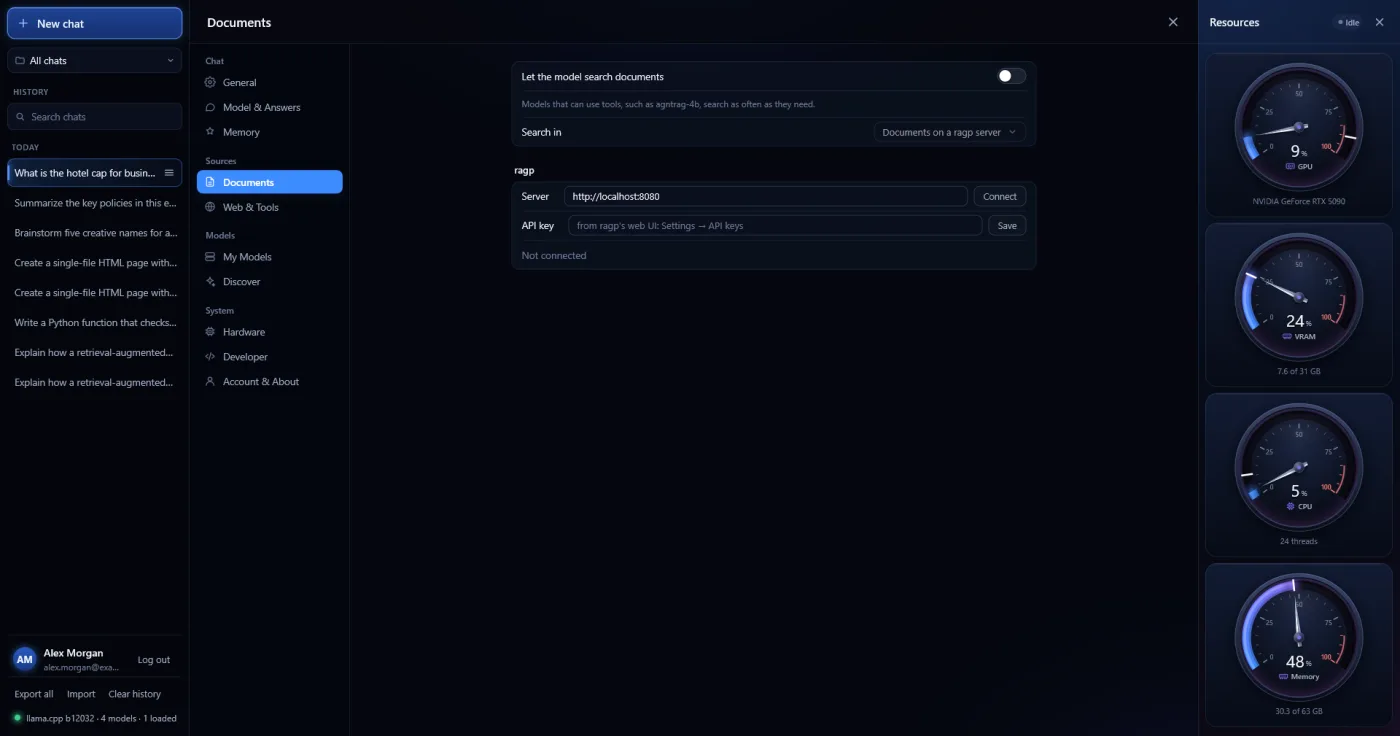
Earlier-build example; displayed names and versions are not release specifications.
Connecting to the document server (InRag)
If the card says Not connected or Sign in with your InRag account:
- Check the Server address your administrator gave you. The app connects by itself when you press Enter, leave the box, or stop typing for a moment (there's no Connect button).
- Enter the API key your administrator gave you (made in InRag, under Settings → API keys) and click Save: it stays connected, best for this computer. Or enter your InRag Email and Password and click Sign in. If signing in doesn't work, the reason shows in red under the button.
When it works, the card says who you're connected as, and the Collection list fills in: pick one, or All collections. In developer mode, Passages per search (k) and Search threshold fine-tune the searches; leave them blank unless your administrator tells you otherwise.
A single file, without InRag
To ask about one file, attach it to your question (section 8): the model reads it for that answer. Searching a whole set of documents needs InRag.
11. Answers from the web
The Web switch in the message box lets the model search the web when a question needs current or general information. Web search is off when you first open the app. Other connected features can still use the network. While the answer is on its way, a progress bar says what the model is doing (searching, reading what it found, writing); the answer then shows with the pages it used under Sources, numbered 1, 2, … in the order the answer cites them. A model searches the web at most twice for one question.
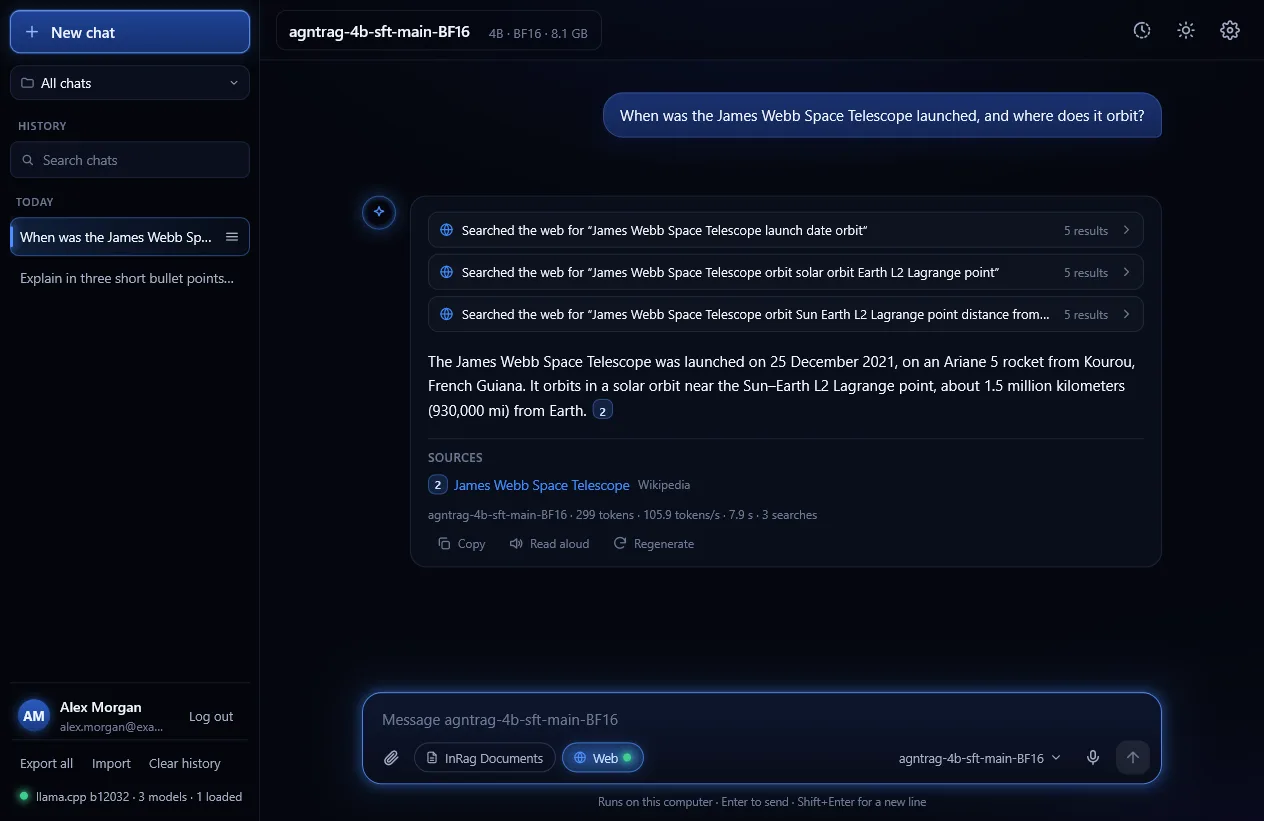
Earlier-build example; displayed names and versions are not release specifications.
What it searches with is chosen in Settings → Web & Tools → Search with:
- Wikipedia (on): encyclopedia articles, reliable and quick to read, for general questions.
- DuckDuckGo (on): the whole web. Questions about what's happening now (news, prices, this year) go here first.
- SearXNG (off): your own SearXNG server, asked before the others. Its address and a Test button show when it's on.
Each next one is asked when the one before finds nothing. No key, account or extra software is needed for Wikipedia and DuckDuckGo. Search terms, which may include words from your question, go to the search service along with normal network information such as your IP address. The Web switch starts off each time the app opens; clicking it turns it on and opens Settings → Web & Tools. If the switch is grayed out, the chosen model can't use tools: pick another model.
Note: DuckDuckGo sometimes limits searches from one computer for a while. The answer then says so: try again a few minutes later.
Part 3: Models and engines
12. Get a model
A model is the AI itself: a large file that the app's engine runs. Models differ in size, speed, skills and license. Settings → Discover is a built-in browser for Hugging Face, the largest free library of AI models, so you can pick one and download it without leaving the app.
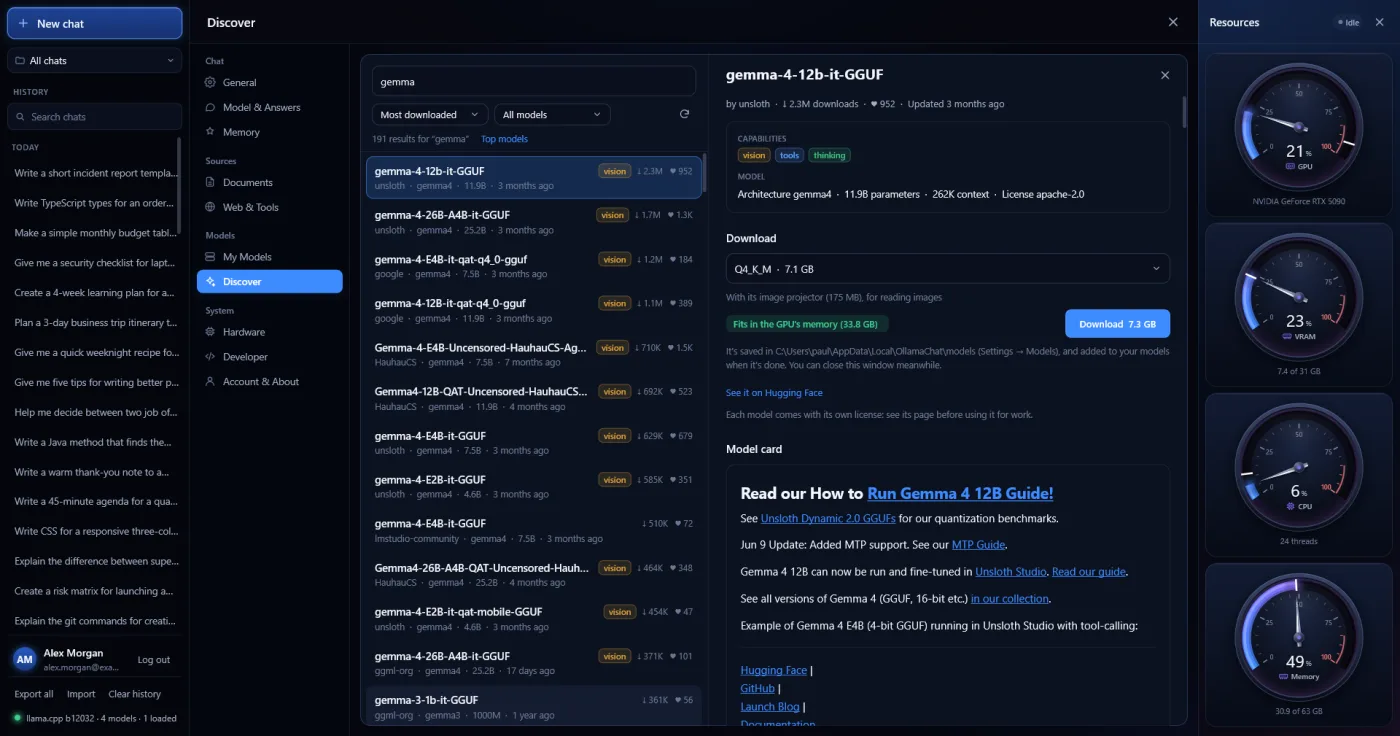
Earlier-build example; displayed names and versions are not release specifications.
Find a model
The list on the left shows the most popular models the app can run. Each row shows the model's name, who made it, its family, its size in parameters (11.9B is 11.9 billion: more is smarter but slower and bigger), how recently it was updated, its downloads and likes, and a vision badge when it can look at pictures.
- Type in the search box to narrow the list. Press Enter to search all of Hugging Face for those words (for example qwen, gemma, llama, mistral, phi, granite). Top models goes back to the list.
- Sort with the first menu: Most downloaded, Trending, Newest or Most liked.
- Filter with the second menu: All models, Chat or Vision (models that can read pictures). In developer mode there's also Embedding: models that other apps can use through the local API service.
- The refresh button (circular arrow) fetches the list again; otherwise it's kept for a few hours.
Click a model to see its details on the right (× closes them):
- Capabilities: tools (it can search your documents and the web while it answers), thinking (it reasons before answering), vision (it can read pictures), embedding (it turns text into numbers for searching: for other apps, through the local API service).
- Model: its architecture, number of parameters, the longest context it was trained for (how much text it can read at once), and its license.
- Model card: the description its makers wrote. It usually explains what the model is good at, and how it may be used. See it on Hugging Face opens the model's page in your browser.
Tip: Which model to choose? For everyday questions and document search, a model with the tools capability works best: InRag Documents and Web only work with those. A model of 3 to 9 billion parameters is a good start: fast, and small enough for most computers. Check the license before using a model for work.
Choose a size and download
Most models come in several sizes (called quantizations): the same model, compressed more or less. The app picks a good balance for you (Q4_K_M); open the Download menu to choose another.
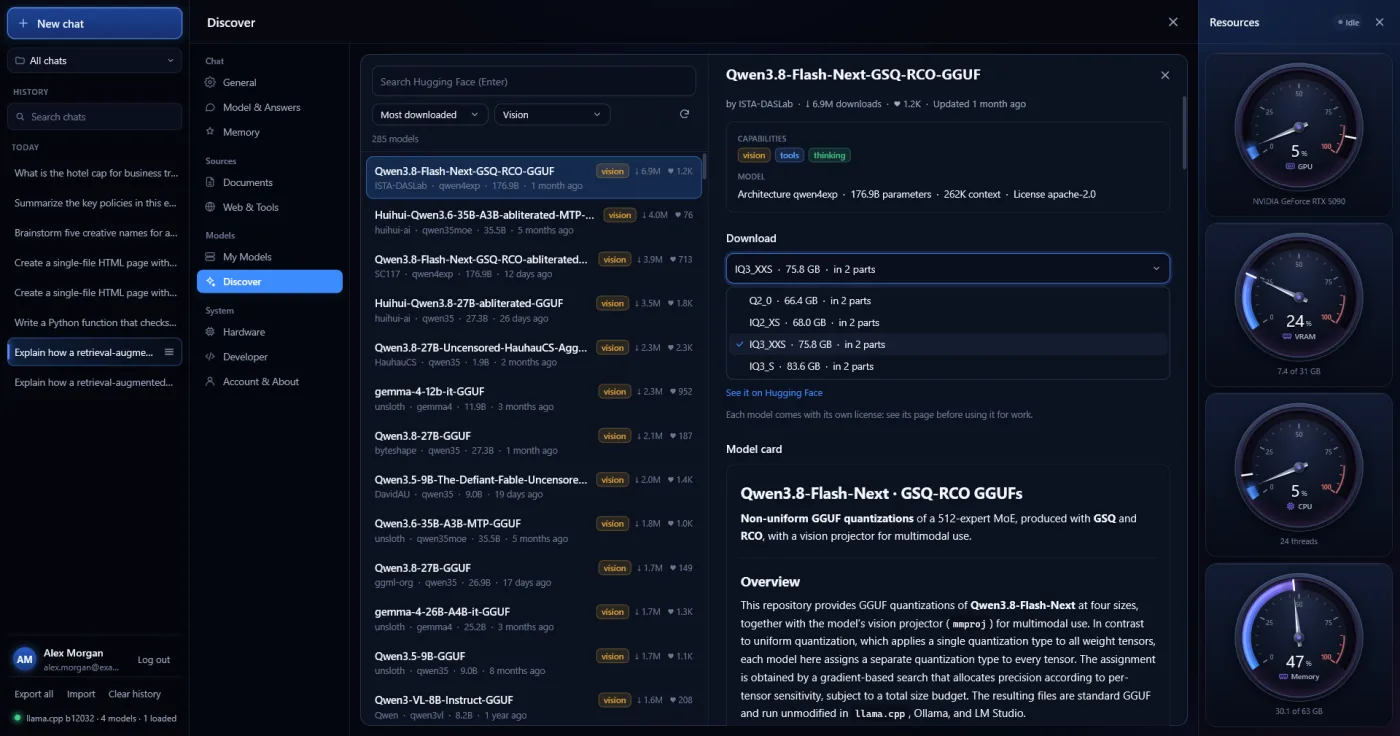
Earlier-build example; displayed names and versions are not release specifications.
| Size name starts with | What it means |
|---|---|
| Q2, Q3 | Smallest and fastest, but noticeably less accurate |
| Q4 (Q4_K_M) | The usual choice: about a quarter of the original size, with little loss |
| Q5, Q6 | Bigger and a little more accurate |
| Q8, F16, BF16 | Largest, close to or exactly the original; needs a lot of memory |
Under the menu, a badge tells you whether that size fits this computer:
| Badge | Meaning |
|---|---|
| 🟢 Fits in the GPU's memory | It runs fully on your graphics card: fast |
| 🟠 Partly on the GPU, the rest on the processor | It works, but more slowly |
| 🟠 Runs on the processor | No graphics card the app can use: it works, slowly |
| 🔴 Likely too large for this computer | Pick a smaller size, or a smaller model |
Then click Download (it shows the size). While it downloads, the button shows how far it is, the speed and the time left, with a Cancel button. You can close the browser, or keep using the app, meanwhile. If the download stops (you cancel it, the connection drops, or you close the app), click Download again: it continues where it stopped. When it's done, the app checks the file, then shows Installed as the model's name, with Use it to start chatting with it.
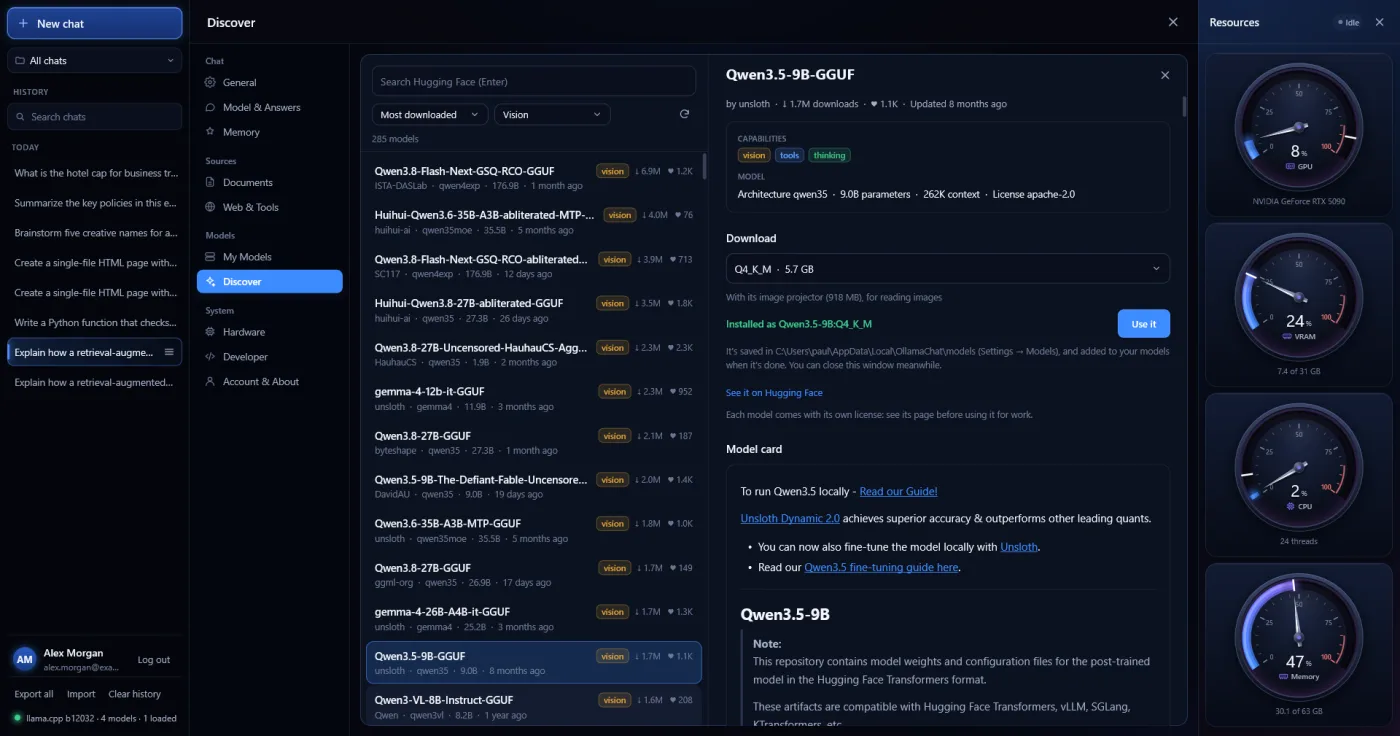
Earlier-build example; displayed names and versions are not release specifications.
Models with the vision capability download their image projector too (a small extra file that lets them read pictures).
Add a model file you already have
Models you already downloaded with Ollama or LM Studio are added by themselves: each time Settings → My Models opens, it looks in their folders (Ollama's, also one set with OLLAMA_MODELS or in Ollama's settings while it runs, and LM Studio's) and adds what isn't in the list yet. They're used where they are; removing one from the list never deletes its file, and it isn't added back.
If you have a model as a .gguf file (from a colleague or a network folder), click Add model files… in Settings → My Models and pick it. The file stays where it is. You can also copy .gguf files into your models folder: they're added the next time you open My Models.
13. Manage your models
Settings → My Models lists your models, where they're kept and how each one loads.
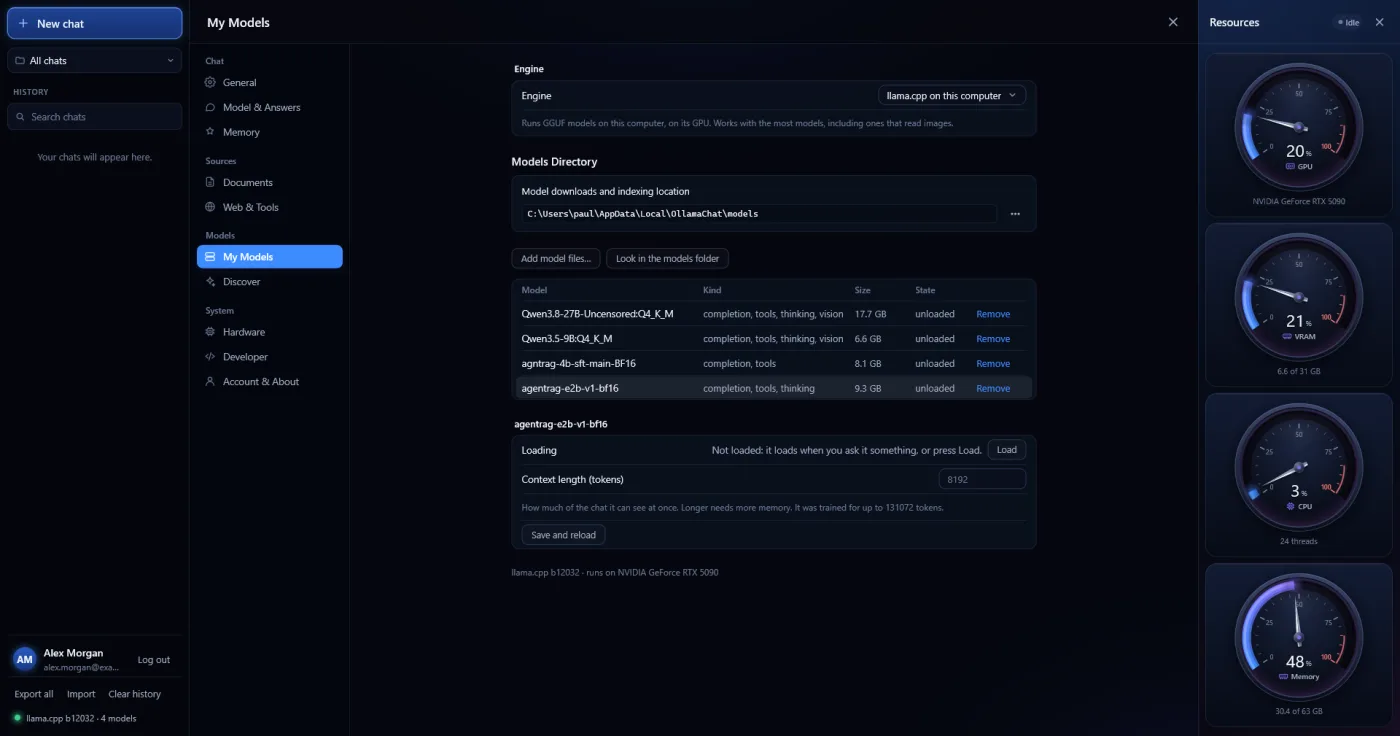
Earlier-build example; displayed names and versions are not release specifications.
| Part | What's there |
|---|---|
| Engine | Tabs: llama.cpp (on this computer, the default), or Company server (section 14) |
| Models Directory | Where downloaded models are saved. The default is in your own Windows user folder, so no administrator rights are needed. The ⋯ menu has Change… (pick another folder, for example on a bigger drive), Show in File Explorer and Use the default folder. Models already added stay where they are |
| Add model files… | Add .gguf files from anywhere. The ones copied into the models folder, and Ollama's and LM Studio's, are added each time the page opens |
| The list | Every model on this computer (a green tick marks the one your chats use): its Kind (completion, tools, thinking, vision, embedding), From (Ollama, LM Studio, Discover, Models folder, Added), Size and State (loaded or unloaded). Click a row to see how it loads; Remove removes it |
| At the foot | The engine's version and the graphics card it runs on |
Removing a model you downloaded deletes its files to free the disk space. Removing a model you added from elsewhere only takes it off the list: its file stays where it is.
Load, eject and tune a model
Click a model in the list. The card under the list shows:
- Chats: Use for chats makes the chats use it; the one they use says Used for chats.
- Loading: whether it's loaded. Load loads it now, so the first answer comes without waiting; otherwise it loads by itself the first time you ask it something (a few seconds, longer for big models). Eject unloads it to free its memory for other programs.
- Context length (tokens): how much of the chat (and of the documents it reads) the model can see at once. A token is about three-quarters of a word. The default, 8192, suits most chats; longer needs more memory. The note under it says the most the model was trained for.
- GPU (in developer mode): Auto (as much of the model on the graphics card as fits), All layers on the GPU, or The processor only (no GPU).
- Changes are saved as you make them (a moment after you stop typing, or on Enter), and the model loads again with them. The model whose settings you change becomes the one your chats use.
With no model chosen for your chats yet, clicking a model in the list chooses it (a note says Chats use … now).
Choosing a model: after you sign in, the app makes sure your chats have a model. If none is chosen, it uses the one you used last; if you haven't used one yet, Settings → My Models opens to choose one (the top bar says Choose a model); with no models at all, Settings → Discover opens to get one.
Settings → Model & Answers shows the same Loading line for the model that answers, and My Models… takes you to its card here.
14. Use a company server
Your organization can run a model server for everyone: one powerful computer (usually with large graphics
cards) that answers for all the apps. Its models can be much bigger than a laptop could run, and your computer needs
no graphics card. The app works with vLLM (your administrator sets it up with server/vllm/README.md from the
app's source) or any other server with OpenAI's API.
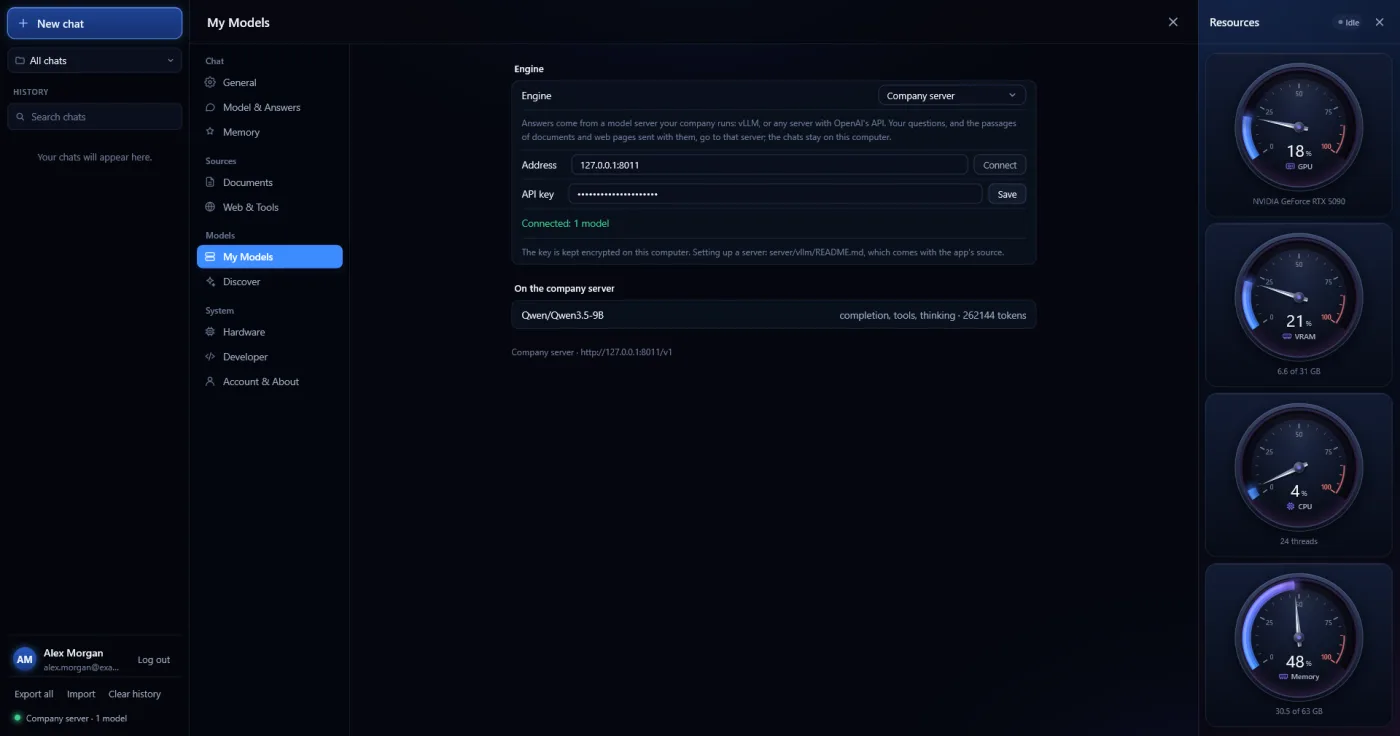
Earlier-build example; displayed names and versions are not release specifications.
Connect
- Get the server's address and API key from your administrator.
- Open Settings → My Models, and under Engine click the Company server tab.
- Type the Address (for example
http://gpu1.example.com:8000, orhttps://ai.example.com) and click Connect. You can leave outhttp://and the/v1at the end: the app adds them. - Type the API key and click Save. It's kept encrypted on this computer.
When it works, the card says Connected: 1 model (or more), and On the company server lists each model, what it can do and how much context the server gives it. The status line at the bottom of the sidebar says Company server · 1 model.
Chat
Close Settings and start a new chat: the model picker lists the server's models, the welcome screen says "Chat with the models on your company's server", and the line under the message box says Answered by the company server. Everything else works as before: thinking, documents, the web, attachments, follow-ups and Stop.
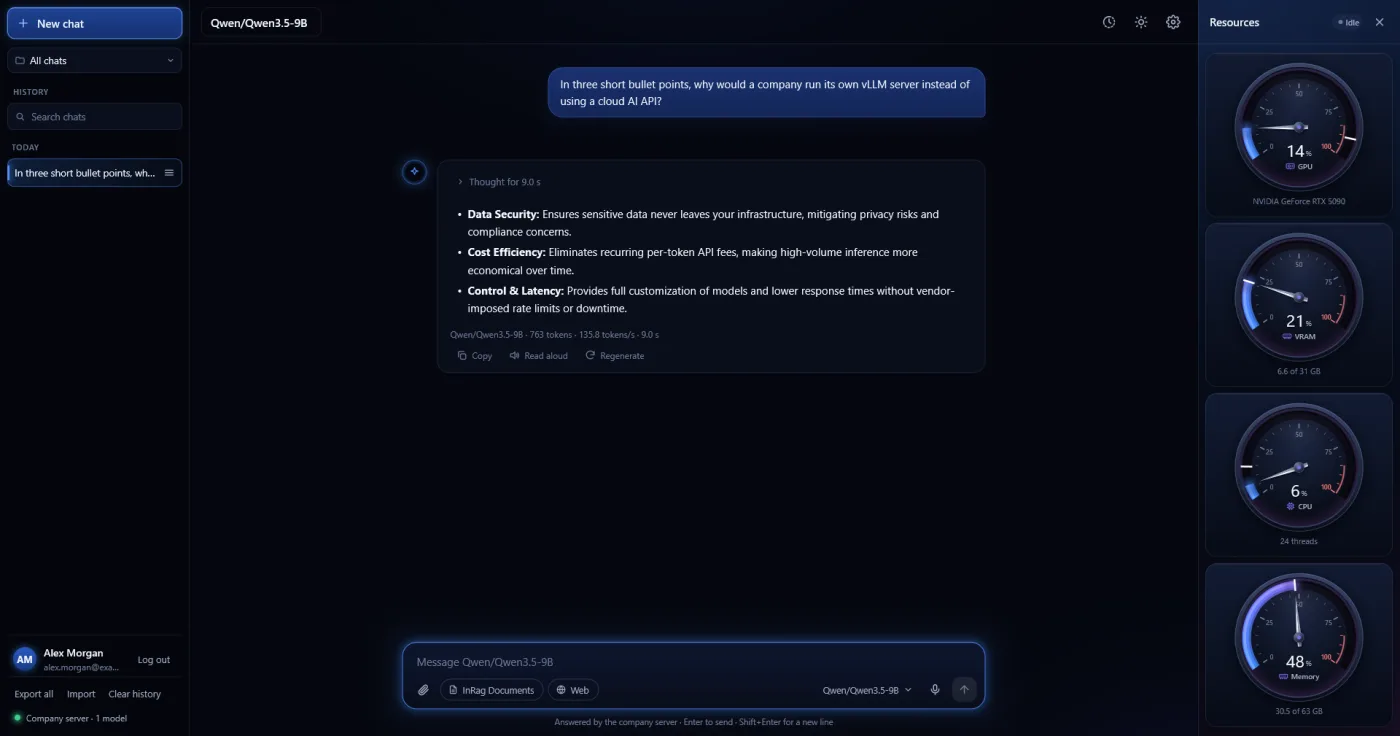
Earlier-build example; displayed names and versions are not release specifications.
What's different with a company server
- The server chooses the models. Discover says "Models come from the company server": ask whoever runs it to add one. Your downloaded models are still on this computer, for when you switch back.
- The server sets how models load. Context length, GPU and the thinking budget are the server's; the resource gauges show this computer, not the server.
- What goes to the server: the conversation, attachment text, memory, project context, and document and web passages needed to answer. Your account and saved chat history are stored on this computer; local storage does not prevent that context from being sent.
Switch back
Settings → My Models → Engine → llama.cpp on this computer. Your local models come back at once. The server's address and key are remembered for next time.
When the server doesn't answer
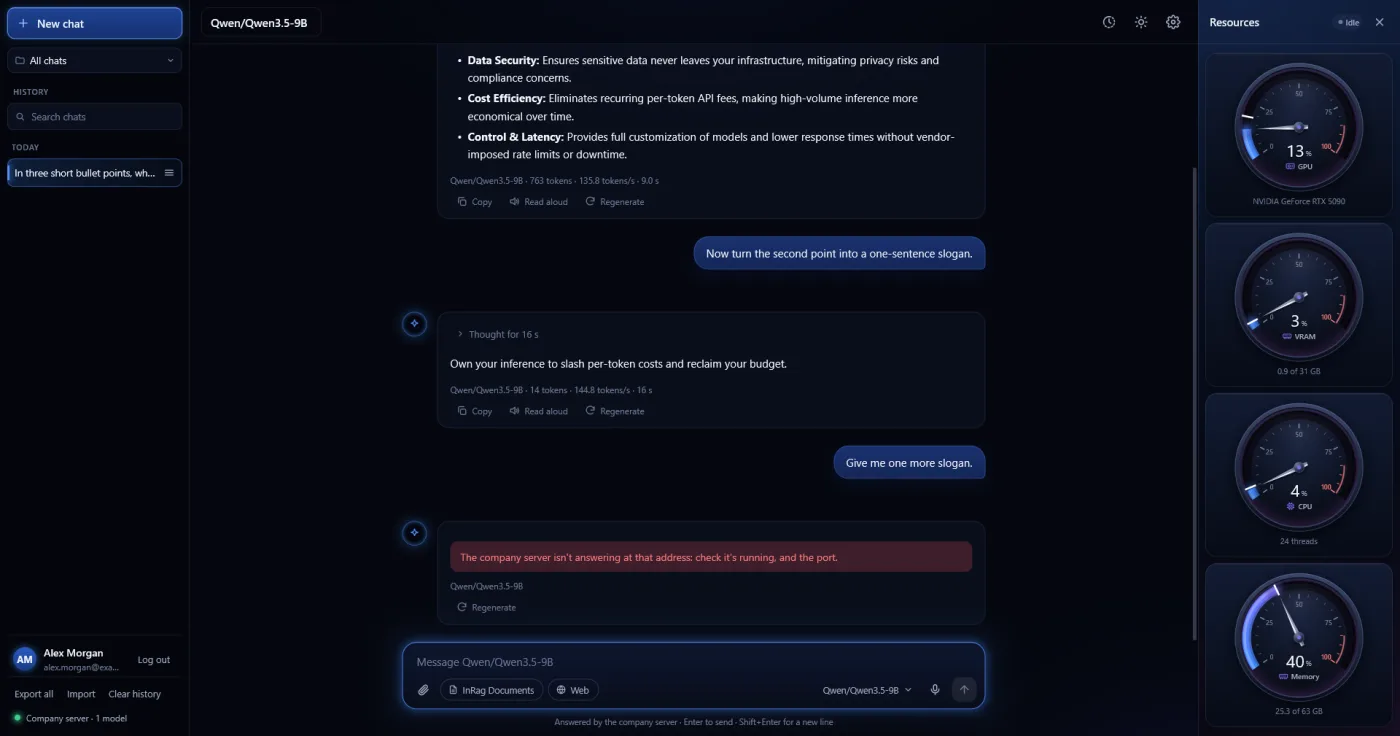
Earlier-build example; displayed names and versions are not release specifications.
| Message | What to do |
|---|---|
| The company server didn't accept the API key. | Check the key with your administrator, type it again and click Save |
| The company server isn't answering at that address: check it's running, and the port. | The server is down, or the address or port is wrong. Ask your administrator |
| Can't find the company server: check its address. | The name in the address doesn't exist on your network: check its spelling, or whether you need the company VPN |
| The secure connection to the company server failed: is its certificate trusted on this computer? | The server uses a certificate Windows doesn't trust. Your administrator can install the company's certificate |
| That address answers, but not with OpenAI's API: give the server's base address, such as http://gpu1:8000. | The address points at something else, or at a page on the server: give just the server and port |
| The company server says: … | The server's own words, for example about a model it doesn't run. Pass them on to your administrator |
15. Hardware, gauges and guardrails
The resource gauges
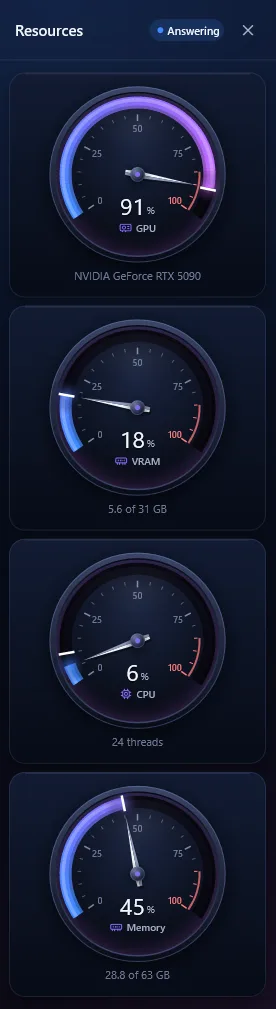
Earlier-build example; displayed names and versions are not release specifications.
The Resources panel beside the chat shows how much of this computer is in use, by every app, as four gauges:
| Gauge | Shows |
|---|---|
| GPU | How busy the graphics card is (as Task Manager counts it), with its name |
| VRAM | The graphics card's own memory in use, for example 7.4 of 31 GB. A loaded model sits here |
| CPU | How busy the processor is, across all its cores |
| Memory | The RAM in use, for example 30.4 of 63 GB |
The gauges update every 2 seconds, and twice a second while an answer is being written; the badge at the top then says Answering. While an answer is written the needles glide to each reading; otherwise they step to it, which keeps the gauges from keeping the graphics card busy. During an answer, a mark across the ring of each gauge records the highest reading, and stays until the next answer: point at a gauge to see it. The red part of each scale, from 85 to 100, shows where that resource is close to full.
- Settings → Hardware → Place the gauges puts the panel at the Right, Bottom, Left or Top of the chat. At the bottom or top, the four gauges stand in a row.
- Drag the bar between the panel and the chat to make it bigger or smaller; double-click it to go back to the first size.
- Settings → Hardware → Monitor the hardware all the time makes the gauges read all the time (the badge then says Monitoring); otherwise they read only while an answer is on its way, and show a dash in between.
- Hide it with its ×, or with Settings → Hardware → Show the GPU, VRAM, CPU and memory gauges beside the chat. It also hides when the window is too narrow for it.
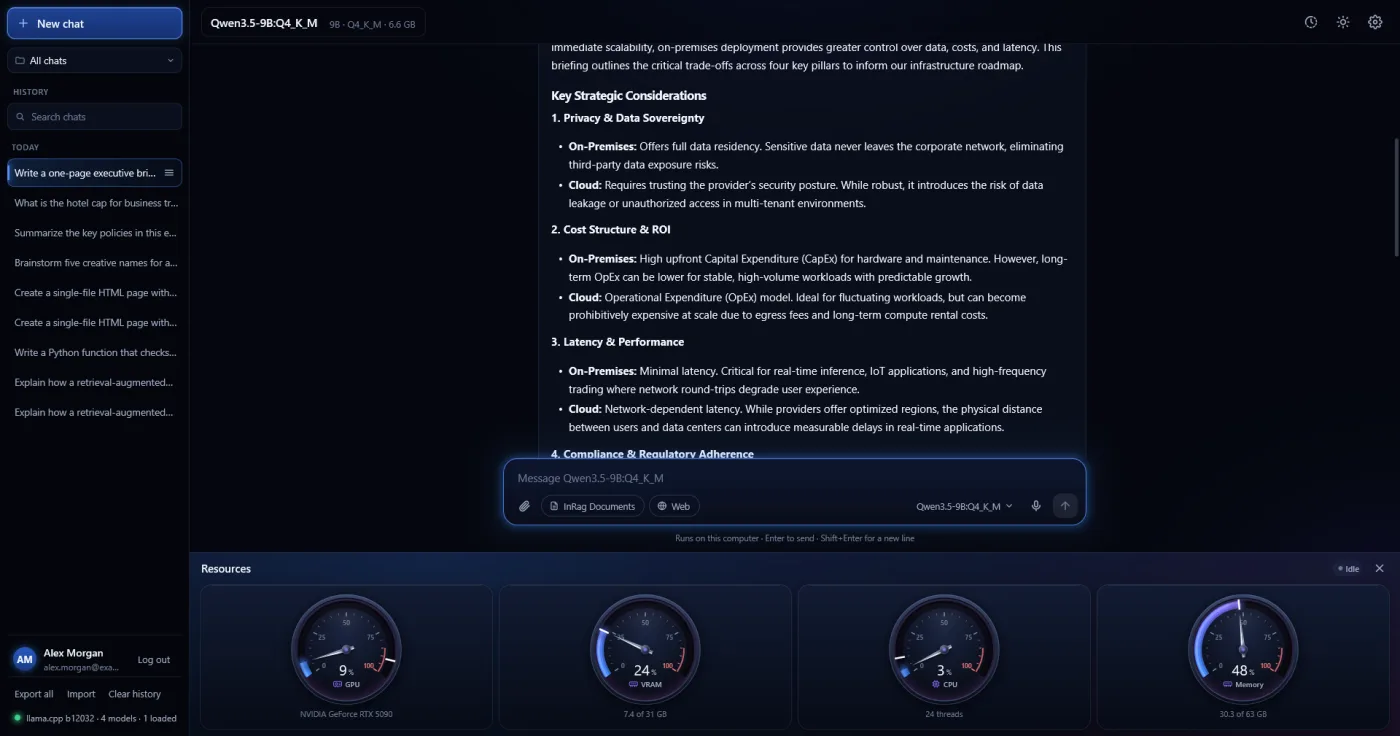
Earlier-build example; displayed names and versions are not release specifications.
This computer, guardrails and loaded models
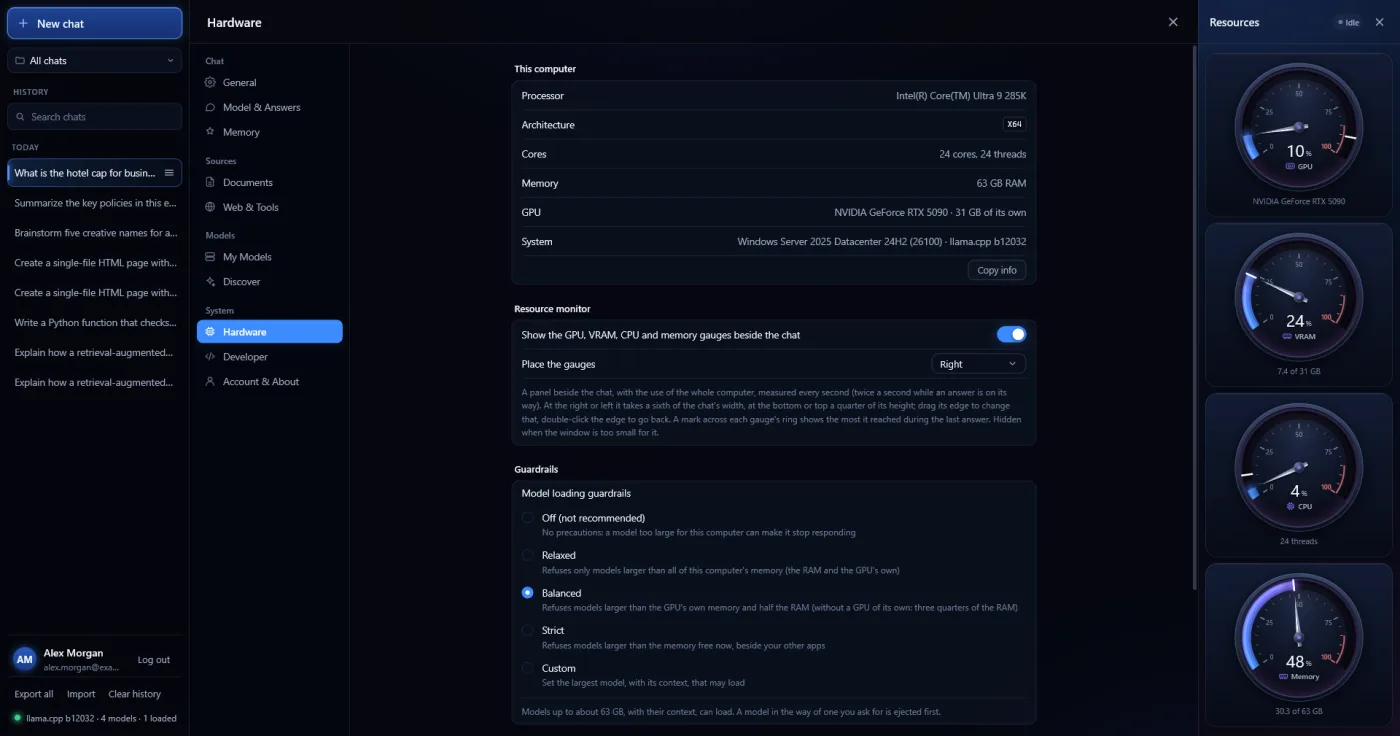
Earlier-build example; displayed names and versions are not release specifications.
This computer lists the processor, memory, graphics card and Windows version; Copy info copies them (useful when you ask for help).
Guardrails stop a model that's too large from making the computer stop responding. Before a model loads, the app checks its size (with its context) against the memory:
| Guardrail | A model is refused when it's larger than… |
|---|---|
| Off (not recommended) | Never: no precautions |
| Relaxed | All of this computer's memory (the RAM and the GPU's own) |
| Balanced (default) | The GPU's own memory and half the RAM (without a GPU of its own: three quarters of the RAM) |
| Strict | The memory free now, beside your other apps |
| Custom | The size you set |
A model in the way of the one you ask for is ejected first, and a message at the bottom of the window says so ("Ejected … to make room for …").
Loaded models: Models loaded at once (1, 2 or 3) lets you switch models without waiting, at the cost of memory; asking another model unloads the one used longest ago. Unload a model when idle (Never, or after 5, 15, 30 minutes or 1 hour) frees its memory for other apps. Both apply the next time a model loads.
Part 4: Staying organized
16. Your chats
Every chat is saved to your account automatically (except temporary chats), and listed in the sidebar by date.
-
Find a chat: type in Search chats. It searches titles, questions and answers.
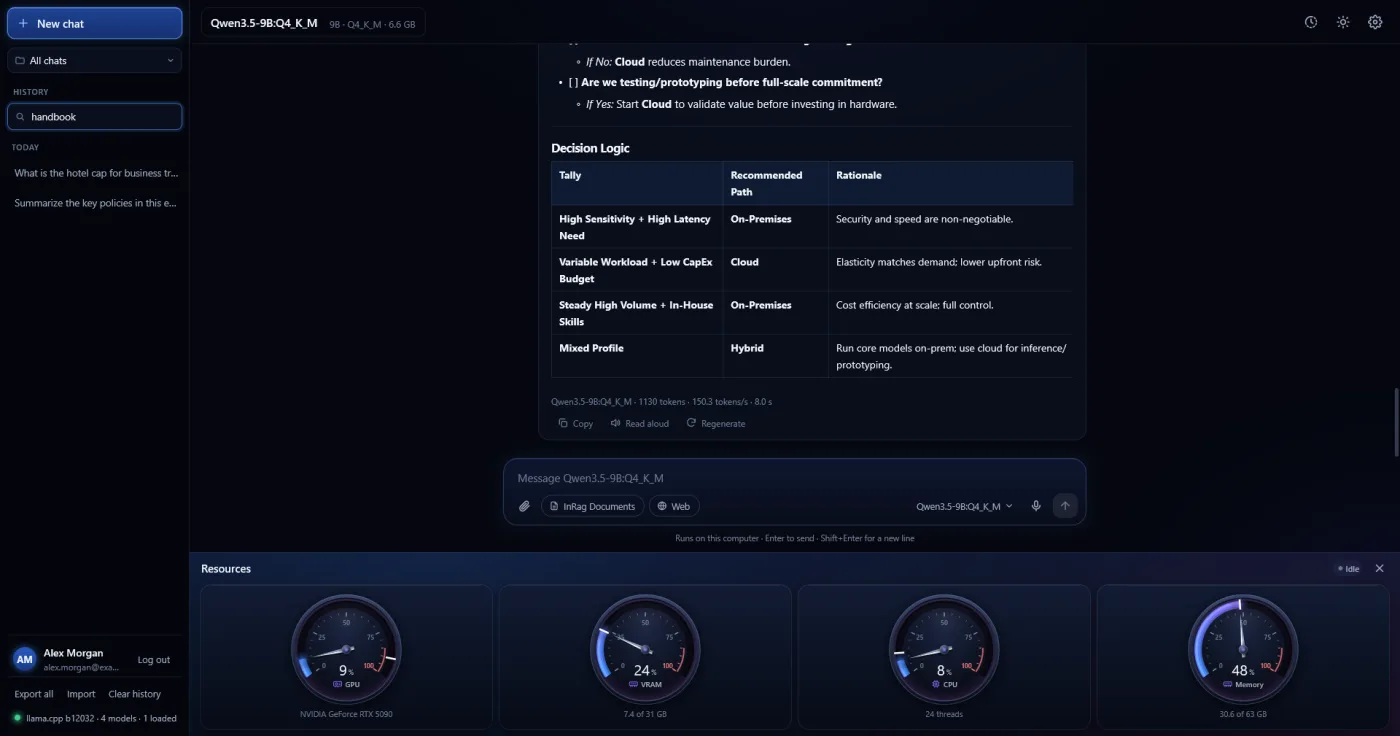
Earlier-build example; displayed names and versions are not release specifications. -
Chat options: click the ☰ button beside a chat in the sidebar.
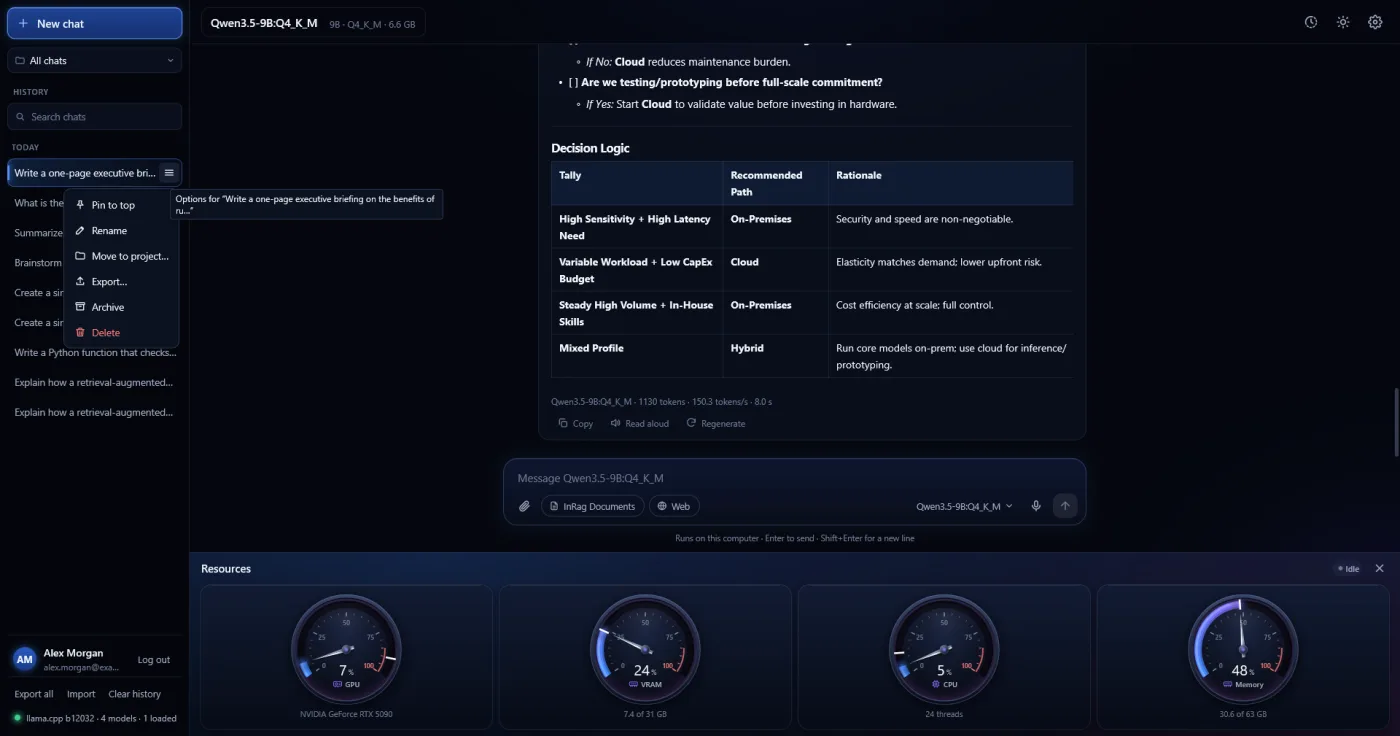
Earlier-build example; displayed names and versions are not release specifications.
| Option | What it does |
|---|---|
| Pin to top / Unpin | Keeps the chat at the top, under Pinned |
| Rename | Gives the chat your own title |
| Move to project… | Puts the chat in a project (section 17) |
| Export… | Saves the chat as Markdown (.md), a Web page to share (.html) that opens anywhere, or a Backup (.json) |
| Archive / Unarchive | Hides a chat you're done with, without deleting it (Show archived chats brings them back into view) |
| Delete | Deletes the chat |
At the bottom of the sidebar:
- Export all saves every chat, project, preset and memory to one backup file. This does not sync or transfer your local account.
- Import loads such a file back, or your ChatGPT history (
conversations.jsonfrom ChatGPT's data export). Chats you already have are skipped. - Clear history deletes all your chats, after asking you to confirm. This can't be undone.
17. Projects
A project groups chats about one subject, and gives every chat in it the same instructions and reference files.
- In the project picker above your chats (it shows All chats), choose New project….
- Enter a Name, and optionally:
- Instructions: sent with every chat in the project, for example "Answer for our finance team, in short bullet points."
- Reference files: click Add files…. Their text is sent with every chat in the project, so keep them short.
- Click Save.
While a project is selected, new chats start in it, and the sidebar shows only its chats. Pick All chats to see everything again. To change a project, click its edit button (Edit the project); Delete project removes it.
18. Memory
Memory holds facts about you that are sent with every chat, so you don't have to repeat them, for example "I work in the HR department" or "I prefer short answers".
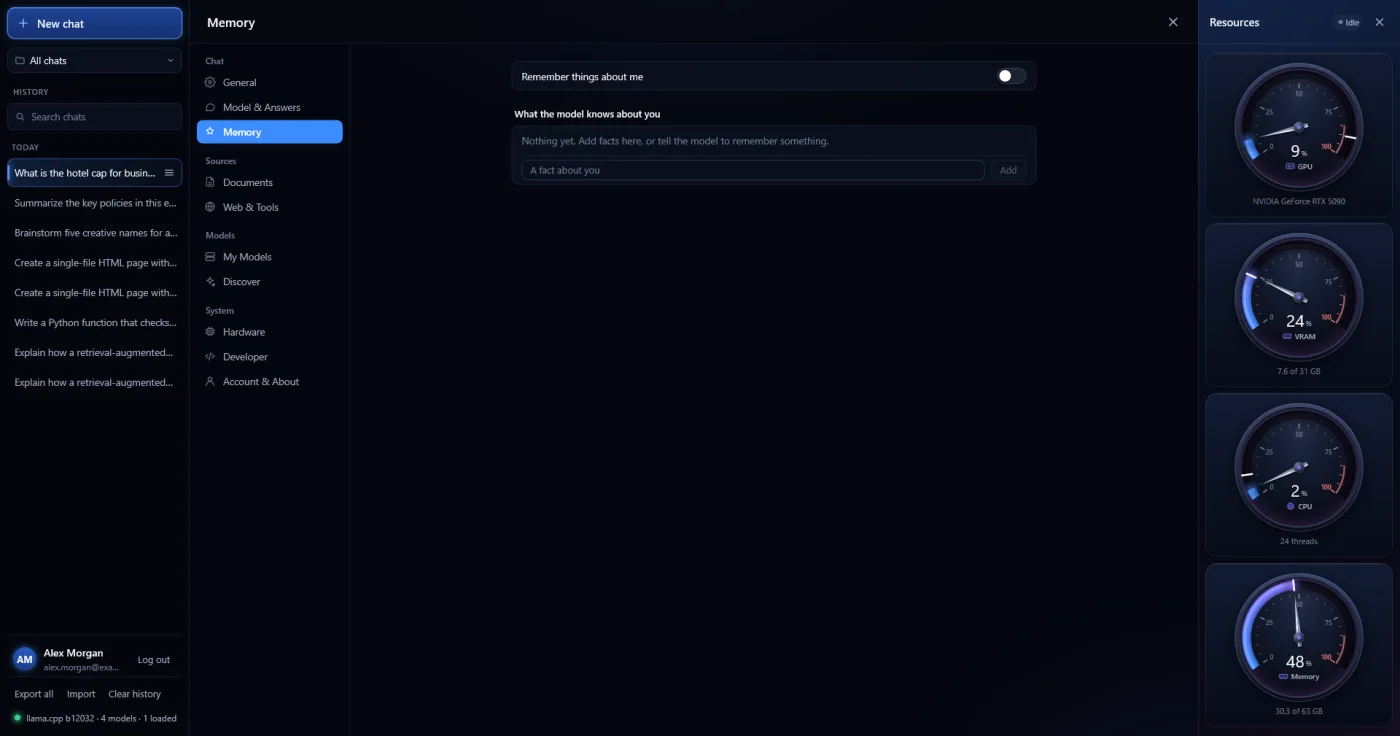
Earlier-build example; displayed names and versions are not release specifications.
- Turn it on in Settings → Memory → Remember things about me.
- Add facts yourself under What the model knows about you (type in A fact about you, then Add), or tell the model "Remember that …" or something about yourself ("I'm …", "my …"): models that can use tools save it themselves. Only then: a question such as "who is the president?" is never saved. A fact it already has, in other words, isn't saved again.
- Click a fact for its details: when it was added, where from, and Open the chat it came from.
- Remove removes a fact; Remove all… removes every one, after asking. Turned off, nothing is sent.
19. Presets
A preset saves how you like answers (the model, the system prompt, thinking, temperature and context length) under a name, so you can switch back in one click.
- Set things up in Settings → Model & Answers.
- Under Presets, type a name in Save the current settings as and click Save preset.
- Later, click Use beside a preset to switch to it, or Delete to remove it.
Part 5: Reference
20. Settings, page by page
Open Settings with the gear in the top bar (or Ctrl+,). Changes are saved as you make them, and most belong to your local profile on this computer. They do not follow you when you sign in on another computer. The models, how each one loads, the engine and the hardware settings belong to this computer. Close with × or Esc.
| Group | Page | What's there |
|---|---|---|
| Chat | General | Theme (Dark blue or Classic), Text size (Small to Larger), Send with (Enter, or Ctrl+Enter) |
| Model & Answers | Model that writes the answer, what it can do, Loading (Load / Eject) and Context length and GPU (→ My Models); System prompt (sent at the start of every chat); Generation: Thinking, Think when searching my documents (off by default), Thinking budget, Temperature (higher is more creative, lower more focused; blank: the model's default), Earlier turns sent; Presets | |
| Memory | Section 18 | |
| Sources | Documents | Document search on or off, and the InRag server: address, API key or sign-in, collection (section 10) |
| Web & Tools | Web search on or off (section 11); in developer mode, MCP servers | |
| Models | My Models | The engine, the models folder, your models and how each loads (sections 13 and 14) |
| Discover | The Hugging Face model browser (section 12) | |
| System | Hardware | This computer, the resource gauges, guardrails and loaded models (section 15) |
| Developer | Developer mode and its options (section 21) | |
| Account & About | Your account (change password, Log out); Updates: Check for updates once a day (a notice at the top of the window when a new version is out; Download opens the download page) and Check now; App Info: the version, Open app logs, the App home directory, and Copy details and Email support for a bug report |
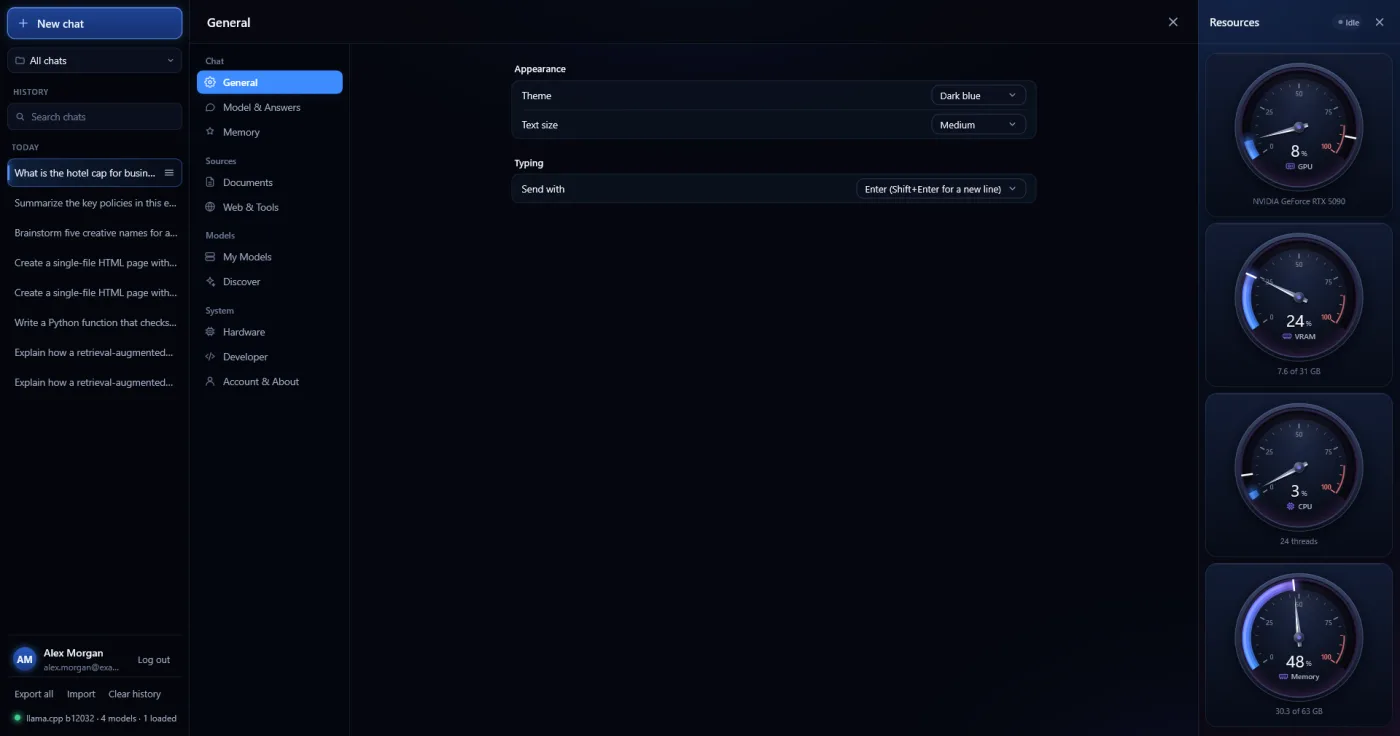 Earlier-build example; displayed names and versions are not release specifications. |
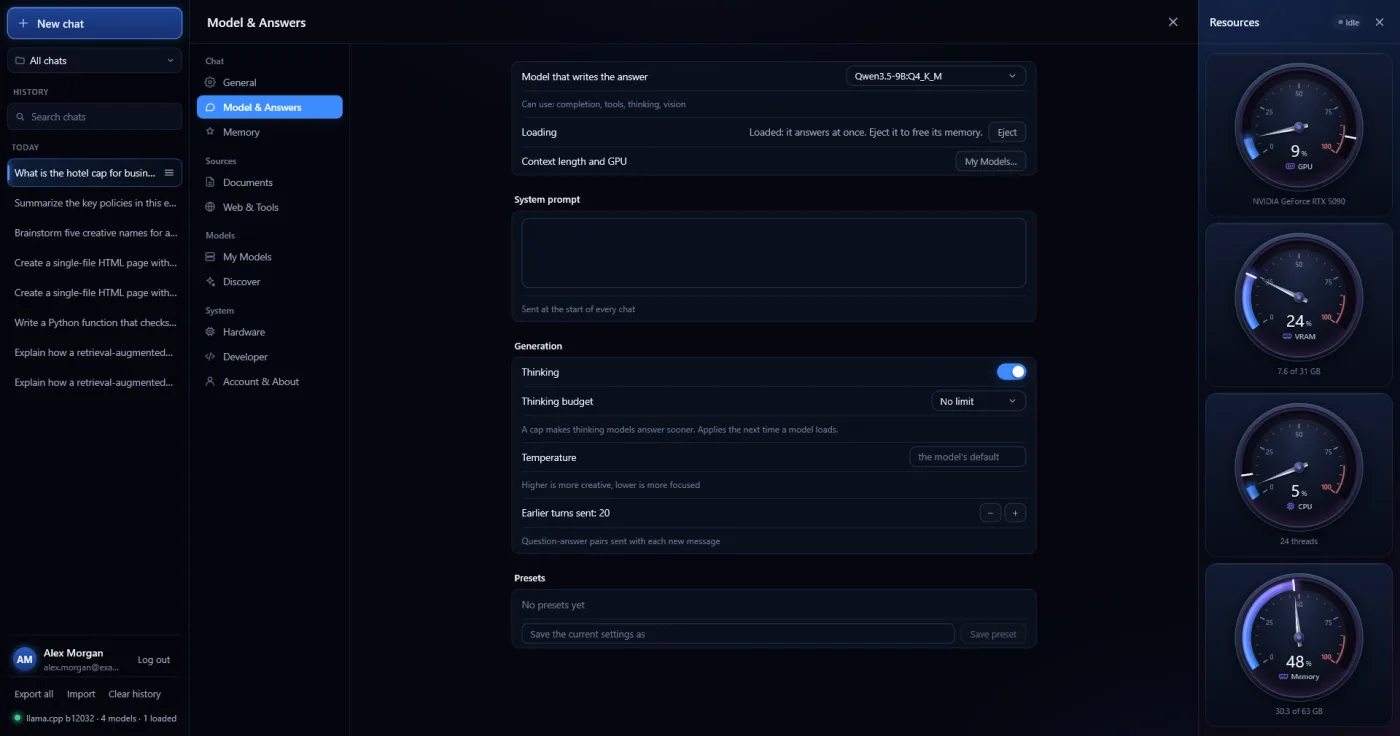 Earlier-build example; displayed names and versions are not release specifications. |
|
General |
Model & Answers |
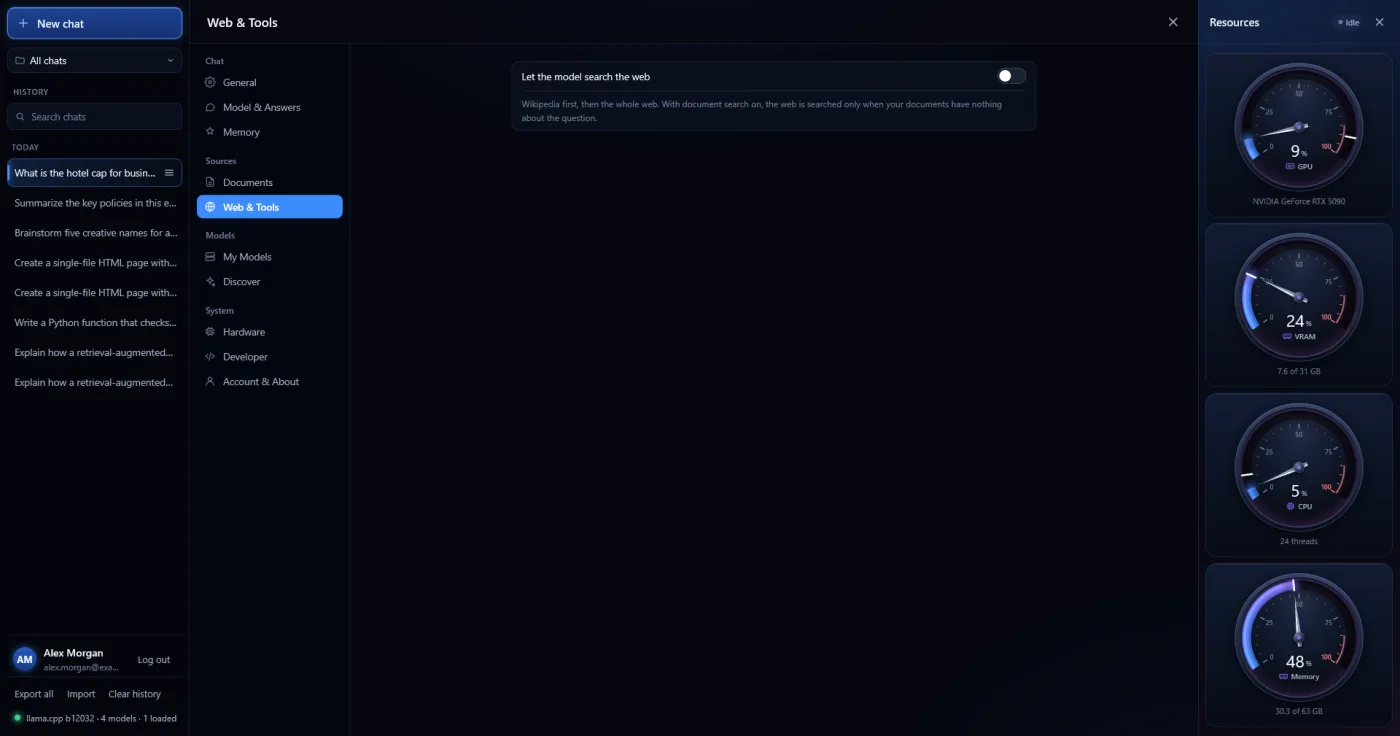 Earlier-build example; displayed names and versions are not release specifications. |
|
Web & Tools |
Hardware |
21. Developer mode
Settings → Developer → Developer mode shows the advanced settings. Most people never need them.
| Where | What developer mode adds |
|---|---|
| My Models | The GPU setting for each model |
| Documents | InRag's Passages per search (k) and Search threshold (blank: your InRag settings apply) |
| Web & Tools | MCP servers: extra tools your administrator may give you an address for. Paste it and click Add server; each server has an on/off switch, its number of tools, and Remove. Servers you added keep working when developer mode is off |
| Developer → Local API service | Serve the models to other apps on this computer: an OpenAI-compatible API (chat, embeddings, the model list) for tools such as editor extensions and scripts. It shows the Port, the Base URL (http://127.0.0.1:<port>/v1), the API key (show, copy, New key), each model's name for the API, and a Try it command to copy. Only this computer can reach it, and apps need the key |
| Developer → Engine | Restart the engine now, the Engine log level (Errors, Warnings, Info, Everything), and Engine log → Open |
| Developer → Chat | Show debug info under answers (each request: what was sent, the tools, time to the first word, token counts and speeds, the tool calls and the guardrail's check), and Show the engine's memory and processor use in the sidebar |
22. Keyboard shortcuts
| Keys | Does |
|---|---|
| Enter | Send (or Ctrl+Enter, if you chose that in Settings); in Discover's search box, search all of Hugging Face |
| Shift+Enter | New line in the message |
| Esc | Stop the answer; close Settings, Discover or a preview |
| Ctrl+Shift+N | New chat |
| Ctrl+, | Open Settings |
| Tab | Move to the next text box |
| Ctrl+C | Copy the selected text |
| Ctrl+V | Paste text, or a picture or file into the message box |
23. Tips for good questions
- Be specific. "What is the notice period for resigning in the 2024 staff handbook?" works better than "notice?".
- Use the words the documents use. If policies say "annual leave", ask about annual leave, not "vacation".
- One question at a time. Split a long list of questions into several messages.
- Name the document when you know it: "In the Smith agreement, when does the contract end?".
- Say what you want back: "as a table", "in three bullet points", "in plain English", "as a Mermaid flowchart".
- Start a new chat for a new topic. Old questions in the same chat can steer the answer the wrong way.
- Check the sources for anything that matters.
- Try another model if the answers aren't good enough: bigger models are usually more accurate, smaller ones faster.
24. Where your data is kept
-
Your chats, settings, presets, projects and memory are kept in your account, in this computer's account database. A copy is kept in your Windows profile while you're logged in; Log out clears that copy.
-
The models are files in your models folder (by default
%LOCALAPPDATA%\OllamaChat\models). Everyone who uses the app on this computer with the same Windows user shares them. -
With a local model and online features off, chat runs on this computer. Connected features can send data as described below and in the app data-flow table.
-
Network use by connected features:
You use What's sent, and where Company server The conversation, attachment text, memory, project context and document passages needed to answer, to your organization's server Web search Search terms, which may include words from your question, to Wikipedia, DuckDuckGo or your SearXNG server, along with normal network information such as your IP address Document search on a InRag server Sign-in and search requests to the InRag server you connect to; the app also checks the connection at startup Discover Requests for Hugging Face's list of models, and the download of the model you pick Code runs and previews The Python runtime downloads from jsDelivr on first use; packages may download when code uses them. Generated code and pages can make their own network requests MCP servers Tool inputs and data, to the tools you add -
Your password is never stored, only a scrambled form of it that can't be turned back into the password. The company server's API key and the login that keeps you signed in are encrypted so that only your Windows user on this computer can use them.
25. Problems and what to do
| What you see | What to do |
|---|---|
| "Wrong email or password." | Check the address and the password (Caps Lock?). Forgot the password: click Forgot password? (section 3) |
| "There's already an account with this email." | Log in instead, or use Forgot password? |
| "Add a model first" | You have no models yet: get one in Settings → Discover (section 12) |
| "Choose a model" in the top bar | Click it and pick a model from the list, or click one in Settings → My Models |
| The status line stays on "Starting the engine…" | Wait up to half a minute. If it then shows an error, see the next rows |
| "The engine started but doesn't answer on 127.0.0.1" | Something on this computer blocks programs from talking to each other over the computer's own network connection: often security or network software. Click Settings → Developer → Restart the engine now (in developer mode). If it keeps happening, ask your administrator to allow llama-server.exe (in the app's engine folder) |
| "The engine stopped as it started", or "The engine isn't answering" | Restart the engine (as above). If it keeps happening, open the log (Settings → Account & About → Open app logs) and send it to your administrator. Updating your graphics card driver can help |
| The model is refused as too large | The guardrail stopped it (section 15). Pick a smaller model or size, lower its Context length (My Models), or eject other models |
| "It couldn't be loaded" under the model | The model may be too large for this computer's memory, or its file is damaged. Try a shorter Context length, GPU → The processor only (developer mode), a smaller size, or remove it and download it again |
| Answers are very slow | The model is too big for your graphics card (or there's none). Pick a smaller model or size: look for the green Fits in the GPU's memory badge in Discover. Ejecting models you don't use frees memory |
| The model thinks for a long time | Choose a Thinking budget, or turn Thinking off, in Settings → Model & Answers |
| The download stopped | Click Download again: it continues where it stopped |
| The list in Discover is empty or doesn't load | Discover needs the internet. Check your connection, then click the refresh button |
| A company server message | See When the server doesn't answer |
| InRag Documents turned itself off | InRag isn't connected: open Settings → Documents to see why (sign in, save a working API key, or check the Server address). It turns back on once InRag connects |
| InRag Documents is on but nothing is found | Check Settings → Documents: it should be connected, with the right Collection. Try other words in your question |
| "The database is not reachable" in a document search | The document server's database isn't running. Ask your administrator |
| The InRag Documents or Web switch is grayed out | The model can't use tools: pick a model with the tools capability |
| "DuckDuckGo answered …: it may be limiting searches" | Try again in a few minutes |
| The microphone says what's missing | See Dictation in section 6 |
| Run or Preview doesn't work | It needs the Microsoft Edge WebView2 Runtime on Windows 11. Ask your administrator |
| "Couldn't load your account" | Log in again. If it keeps happening, tell your administrator |
| The answer is wrong or made up | Check its SOURCES. Ask again with more specific words, turn on InRag Documents or Web, try a bigger model, or click Regenerate |
Tip: Asking for help? Settings → Account & About → Copy details copies the app and engine versions, this computer's hardware, the model in use and the end of the engine's log; Email support then opens an email to support@magicsoft.com to paste it into.
26. Glossary
| Word | Meaning |
|---|---|
| Model | The AI itself: a large file of learned patterns that writes the answers |
| Engine | The program that runs a model: llama.cpp, built into the app, or a company server |
| Company server | A model server your organization runs for everyone (usually vLLM) |
| Token | A piece of a word; about three-quarters of a word on average. Speeds and lengths are counted in tokens |
| Context length | How many tokens the model can see at once: the chat so far, attachments and passages found |
| Parameters | The size of a model, in billions (9B). More is usually smarter, slower and bigger |
| Quantization | How much a model is compressed (Q4_K_M, Q8_0 …). Smaller is faster but a little less accurate |
| GGUF | The file format of the models the built-in engine runs (.gguf) |
| Tools | A model's ability to search your documents and the web, or use MCP tools, while it answers |
| Thinking | A model's reasoning before it answers, shown in the Thought for … panel |
| Vision | A model's ability to look at pictures; it needs an image projector file |
| Embedding model | A small model that turns text into numbers so that passages can be compared with a question |
| VRAM | The graphics card's own memory, where a model runs fastest |
| InRag | Your organization's document server, searched by InRag Documents |
| MCP | Model Context Protocol: a standard way to give the model extra tools |
InQorix for Windows