
Get started with InQorix
Install the app, choose a model, and ask your first questions.
Full Mac guide · Full Windows guide · Release notes
1. Install InQorix
Go to the download page for the build and requirements for your computer. InQorix 0.7 supports Apple silicon Macs with macOS 14 or later, and Windows 11 on x64 computers only. Windows 10 is not offered.
On a Mac
- Download. On the download page, fill in the form, tick the license box and click Agree and download. Your browser saves
InQorix-0.7.0.dmg(about 136 MB) in your Downloads folder. - Open the disk image. Double-click
InQorix-0.7.0.dmgin Downloads (or click it in your browser's list of downloads). A window opens with InQorix and a shortcut to your Applications folder.
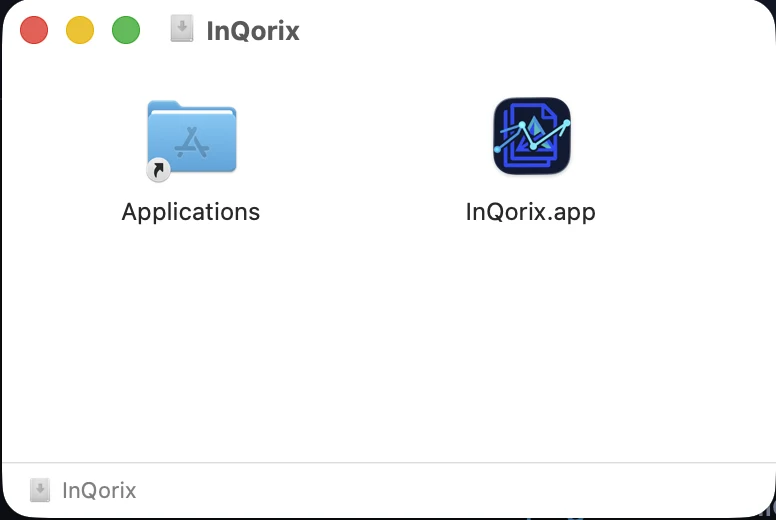
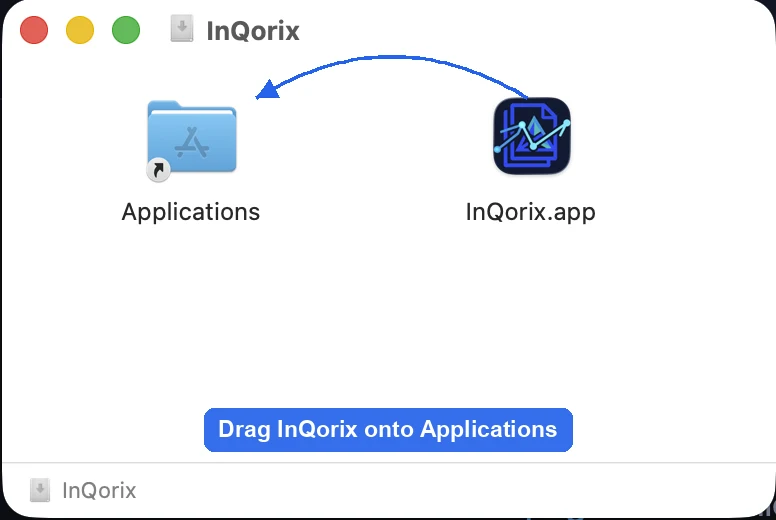
- Copy InQorix to Applications. Drag the InQorix icon onto the Applications folder in the same window, and let go. macOS copies the app; wait until it finishes.
- Open InQorix. Open your Applications folder (in Finder, choose Go → Applications) and double-click InQorix. You can also press Command + Space, type InQorix and press Return. The first time, macOS asks whether you're sure you want to open an app downloaded from the Internet: click Open. InQorix is signed and checked by Apple, so you won't see a warning about an unidentified developer.
- Tidy up (optional). In the Finder sidebar, click the eject button next to InQorix to close the disk image. You can then move
InQorix-0.7.0.dmgfrom Downloads to the Trash. Always open InQorix from Applications, not from the disk image window.
To keep InQorix in the Dock: while it's open, Control-click its icon in the Dock and choose Options → Keep in Dock.
On a Windows PC
On the download page, fill in the form and click Agree and download. Open InQorix-0.7.0-Setup.exe from your Downloads folder, follow its steps, then open InQorix from the Start menu.
Before updating: export your chats first. Chat and settings preservation across updates has not yet been confirmed by release testing.
2. Create your local account
Choose Create an account. Enter your name, email, and a password with at least eight characters and a number or symbol. Confirm the password, then choose Create account. No verification email is sent.
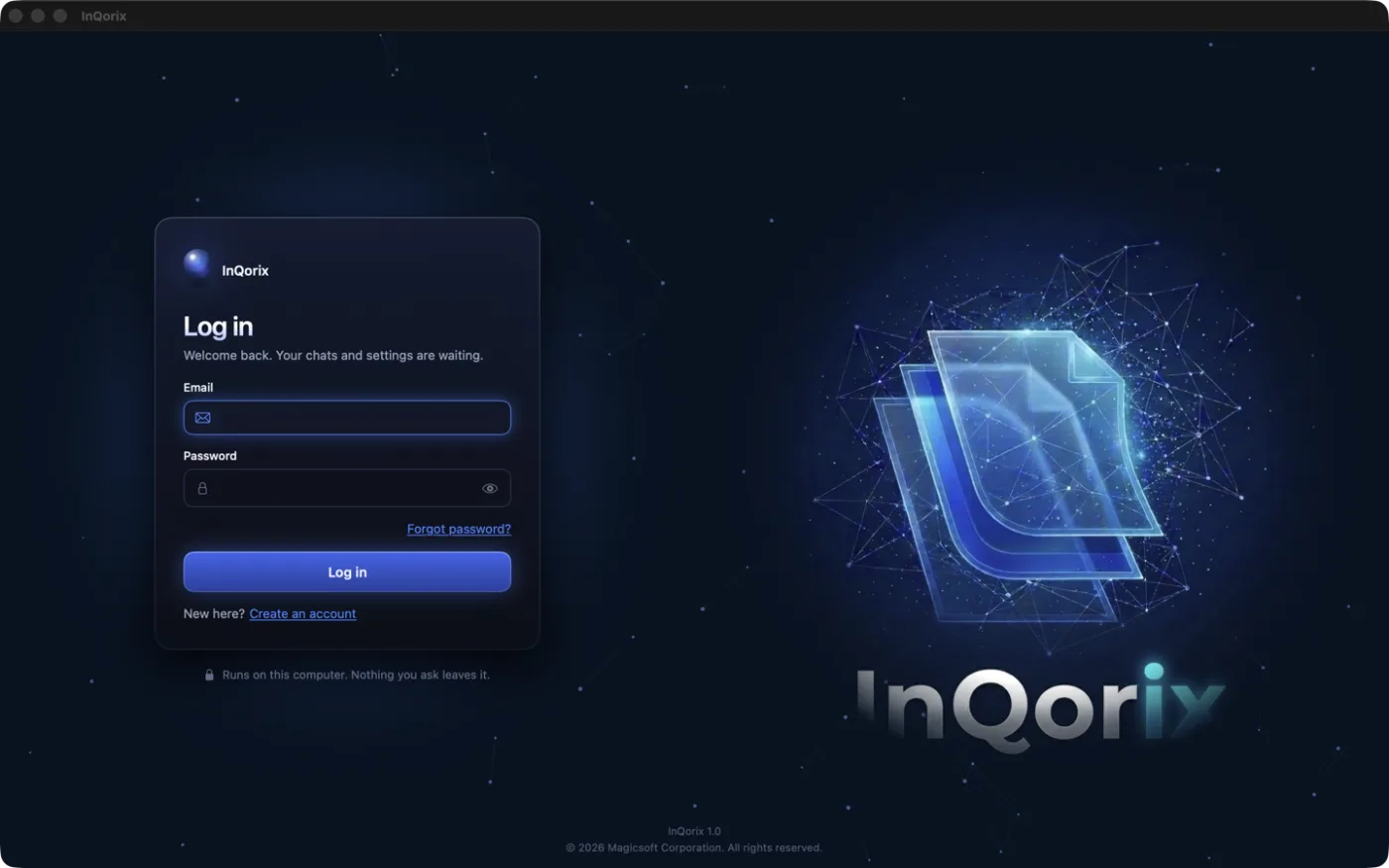
Mac shown; Windows looks the same. Earlier-build example; displayed names and versions may differ.
This account is a profile on this computer. Accounts and chats do not sync between computers or follow you when you sign in elsewhere. It keeps each person's chats and settings separate; it isn't a security lock. Anyone who can use the app under the same computer login and knows a profile's email can reset its password. Use your computer's own sign-in to protect sensitive work.
3. Choose a model
Open Settings → Discover. Choose a compatible model, check the download size and the memory-fit estimate, then choose Download. When the download finishes, click Use it.
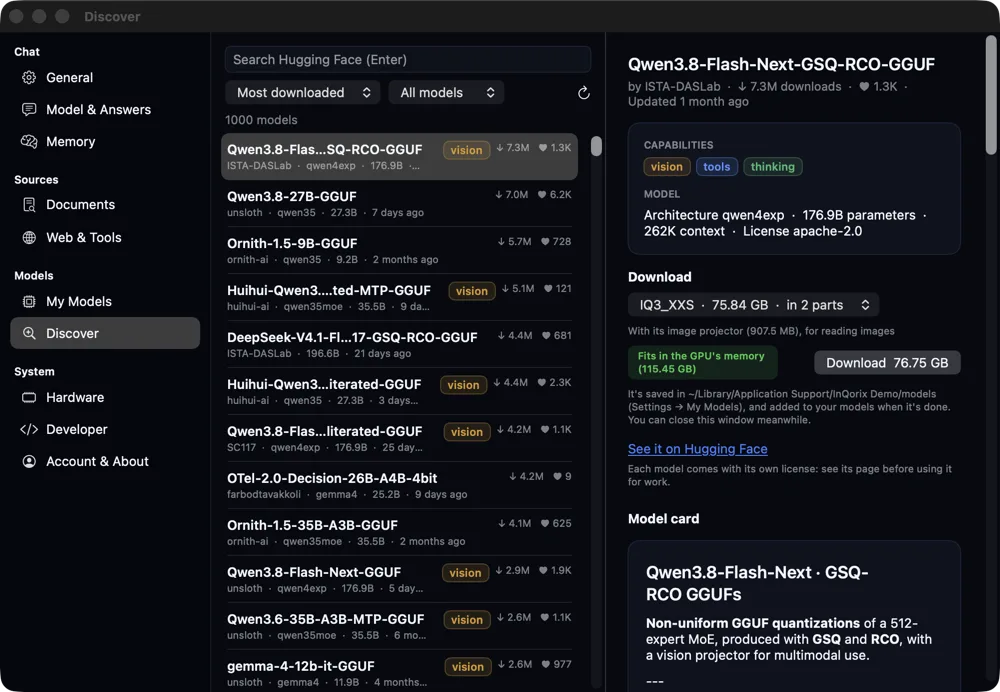
Mac shown. Earlier-build example; the models listed change over time.
Starter model: InModel is Magicsoft's starter model: a 4-billion-parameter model based on Qwen3-4B-Instruct-2507, released under the MIT License. At full precision (BF16) it's about 8 GB; quantized versions are smaller and need less memory, and Discover shows which ones fit your computer. Release testing used InModel on Windows 11 and on an Apple silicon Mac (M4 Max). Until InModel appears in Discover, choose any compatible model there that fits your computer.
Already use Ollama or LM Studio? Open Settings → My Models. InQorix finds compatible models in their existing libraries and uses them where they are. You can also choose Add model files… for a GGUF file. On Mac, the MLX engine has Add a model folder….
Your IT team provides a company server: Ask for its address and API key. In Settings → My Models, choose Company server, enter the supplied details, and choose a server model. You can skip the local model download. Your questions and the conversation needed to answer them go to that server. See the Windows steps or Mac model settings.
4. Ask your first questions
These are the same steps as the getting-started video. Copy a prompt, paste it into the message box at the bottom of the window, and press Return (Enter on Windows). Click New chat in the sidebar before each one.
Ask a general question
Who is the current president of South Korea?
The answer may be out of date: a model only knows what it learned in training. The next step fixes that.
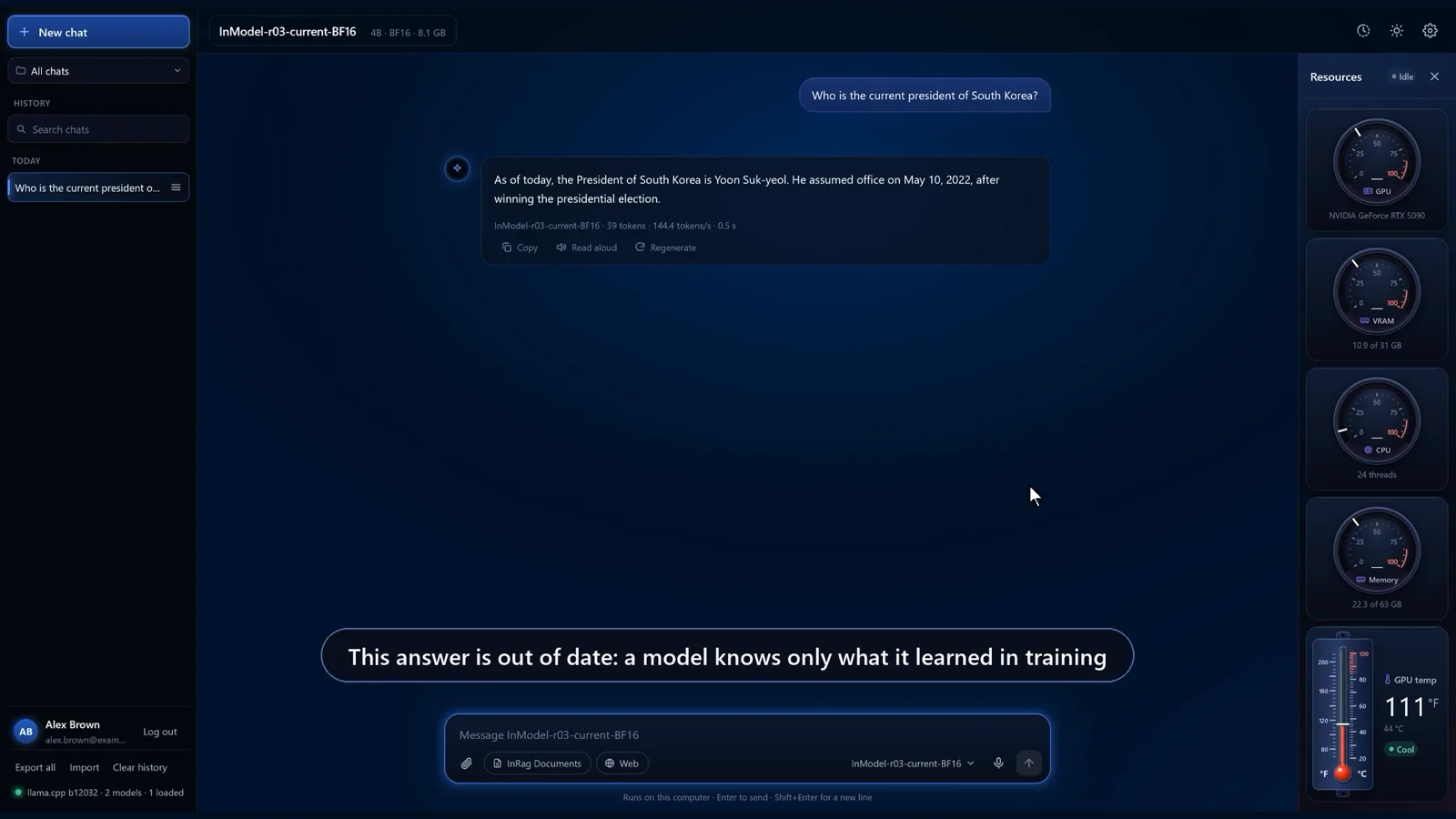
From the getting-started video (Windows). The Mac app looks the same.
Ask again with Web on
Start a New chat, click Web under the message box so it lights up, and ask the same question. InQorix searches the web first, and the answer lists its Sources so you can check each fact. Web starts off; it works with models that can use tools, and if the button is dimmed, choose another model.
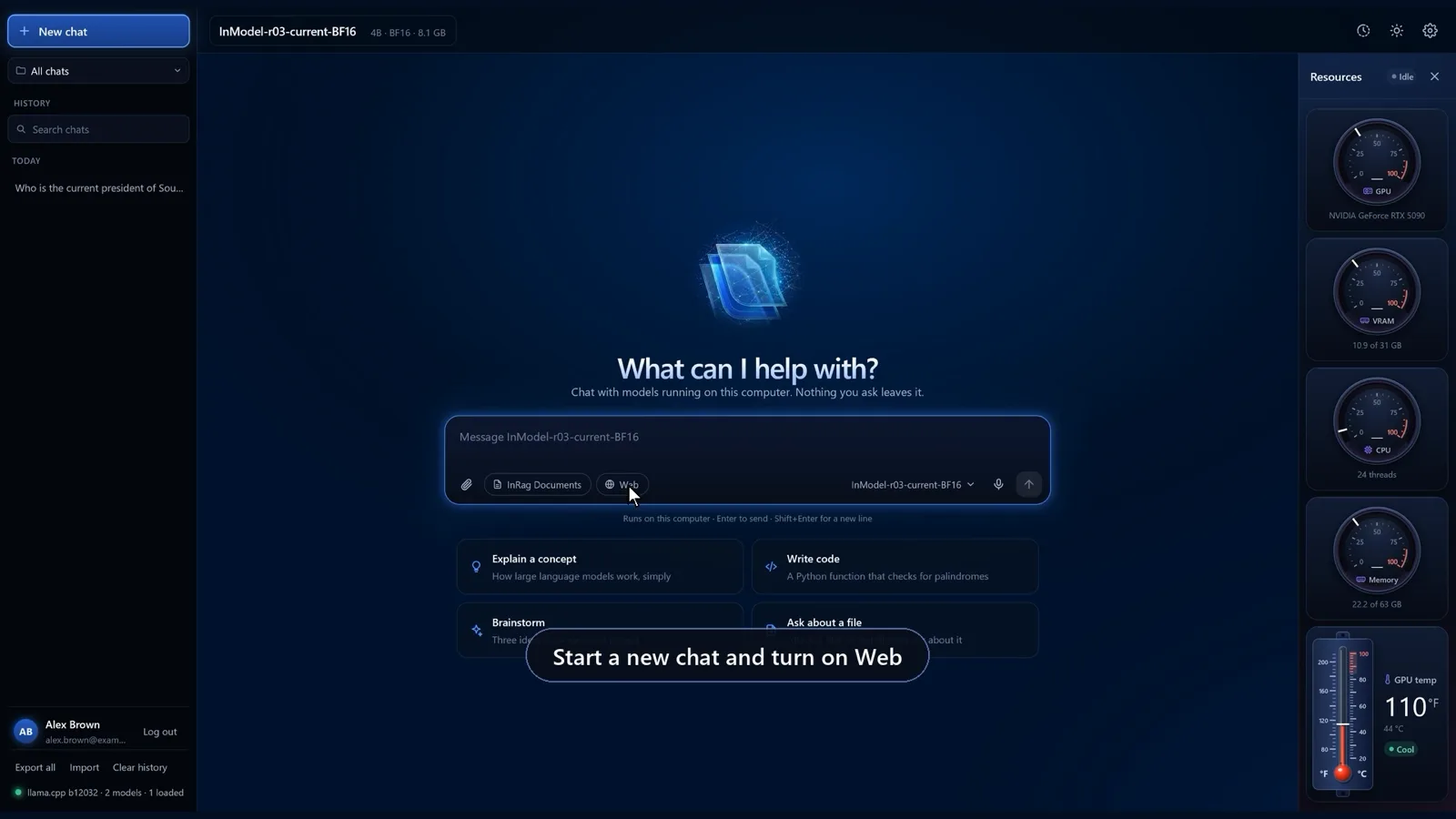
From the getting-started video (Windows). The Mac app looks the same.
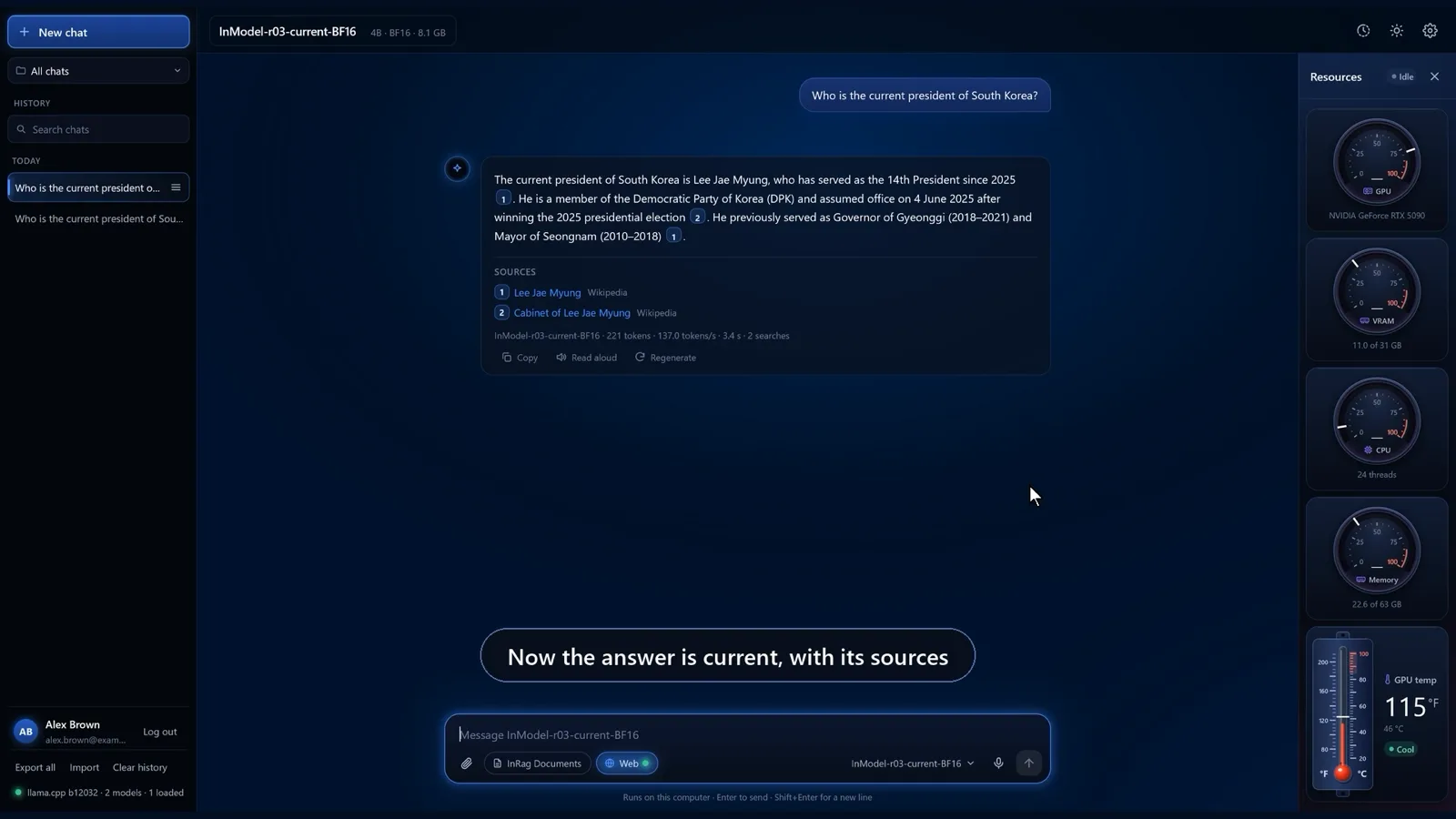
From the getting-started video (Windows). The Mac app looks the same.
Build a small app and preview it
Build a loan calculator with graphs as one self-contained HTML page: sliders for amount, annual rate and years; show the monthly payment and total interest in two cards, and a bar chart of the remaining balance each year. Dark theme, modern look. Reply with the whole page in one html code block.
When the code is written, click Preview above it: the page runs inside InQorix. Move a slider and the payment, interest and chart update. Larger models write better pages; a small model may need a second try.
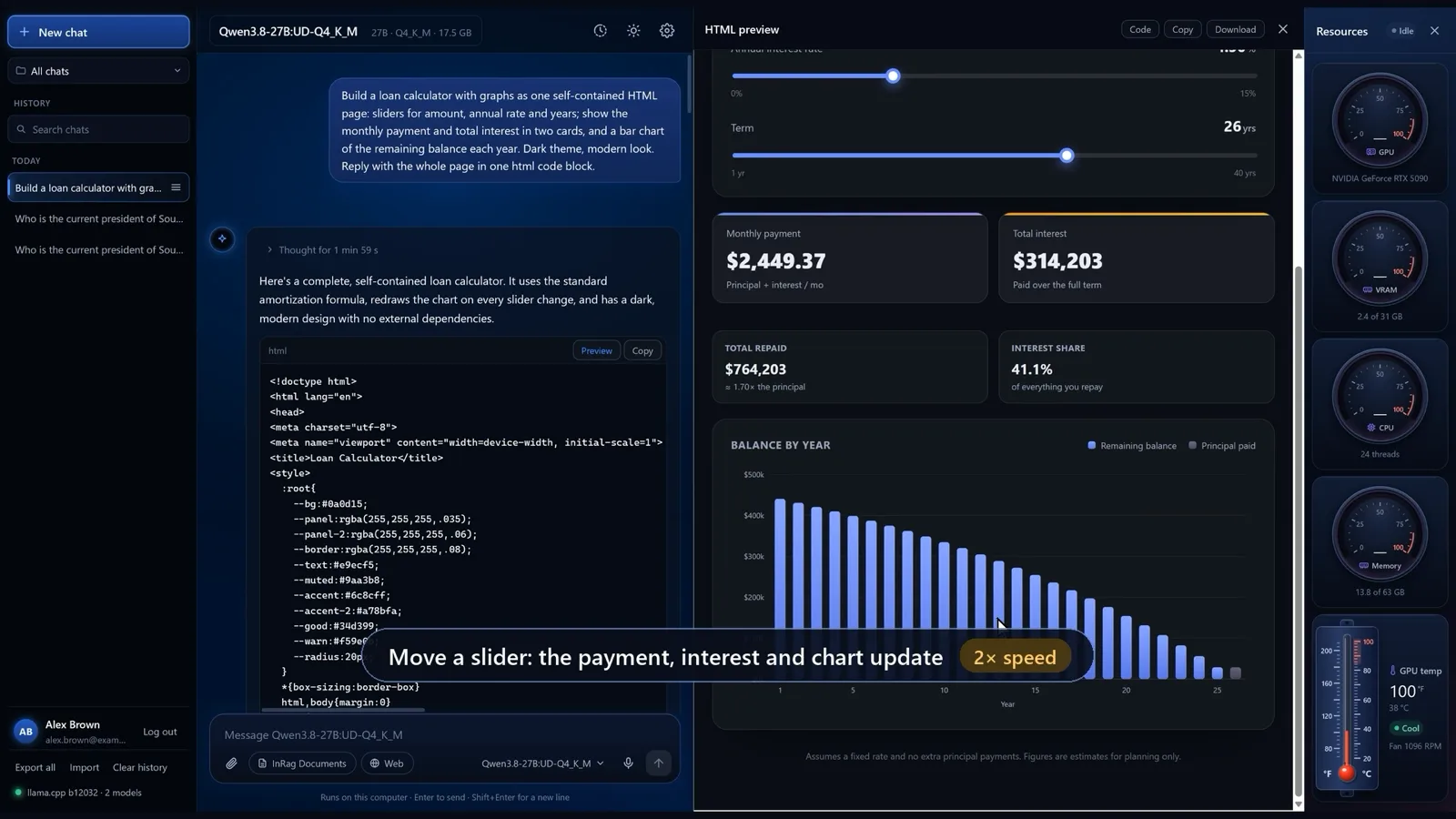
From the getting-started video (Windows). The Mac app looks the same.
Draw a diagram
Draw a Mermaid flowchart of our new-hire onboarding: offer accepted, background check, then IT setup and paperwork in parallel, first day, 30-day check-in, 90-day review. Short labels.
The model writes the diagram as a short Mermaid code block; click Preview above it to see the flowchart.
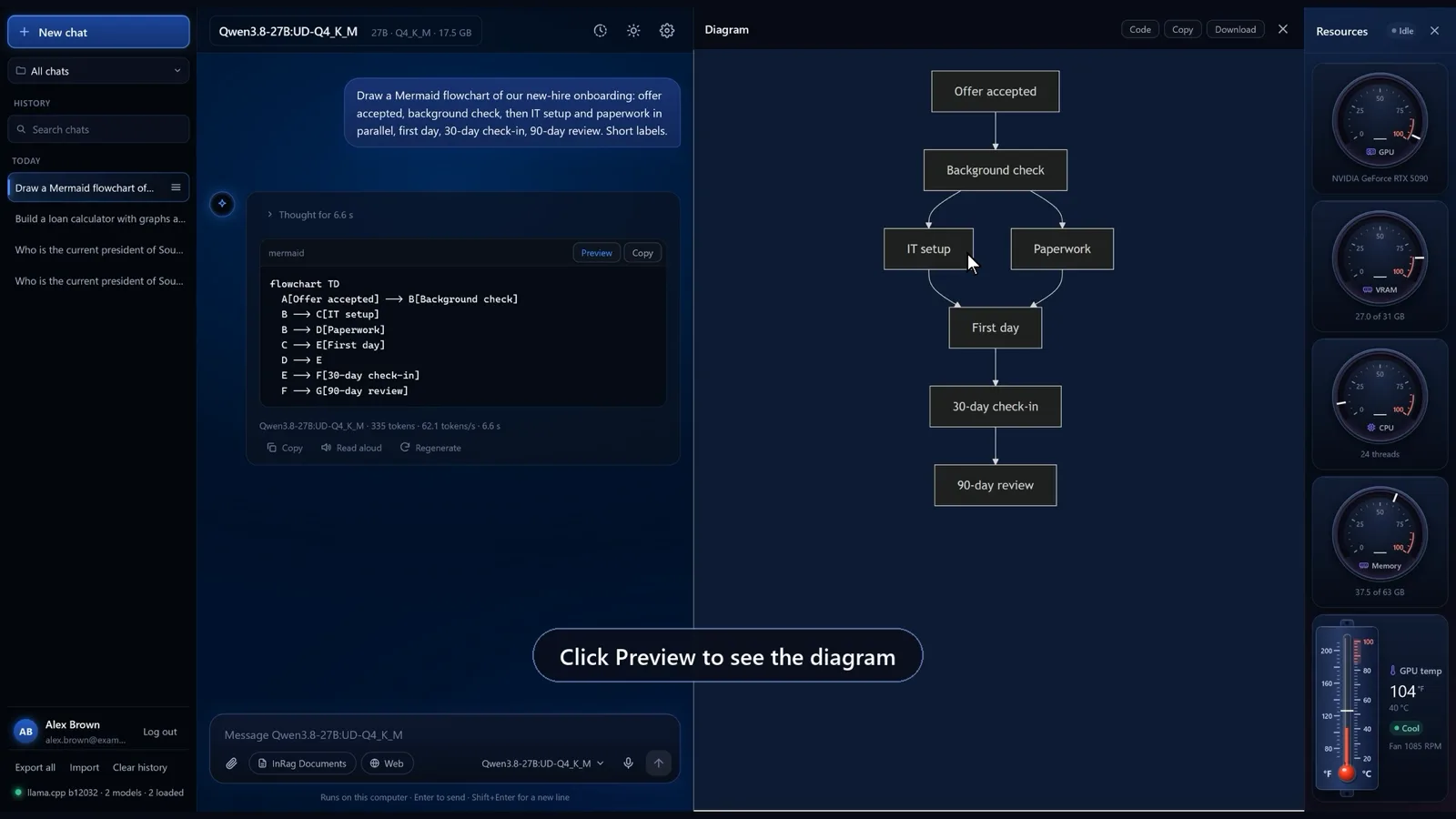
From the getting-started video (Windows). The Mac app looks the same.
Ask your company's documents (with InRag)
If your organization runs an InRag server, click InRag Documents under the message box. The first time, it opens Settings → Documents: enter the server address and sign in with your InRag account, then choose a collection. Then ask, for example:
According to our HR policy, draft an offer letter to John Shanes: Senior Data Analyst on the Analytics team, starting January 4, 2027, reporting to Jordan Lee, at $102,000 a year. Include the full benefits, vacation, hybrid work, acceptance deadline and signers exactly as our offer letter guidelines state them.
InRag finds the matching passages in your documents, and the answer cites them under Sources. Don't have InRag? Book a demo.
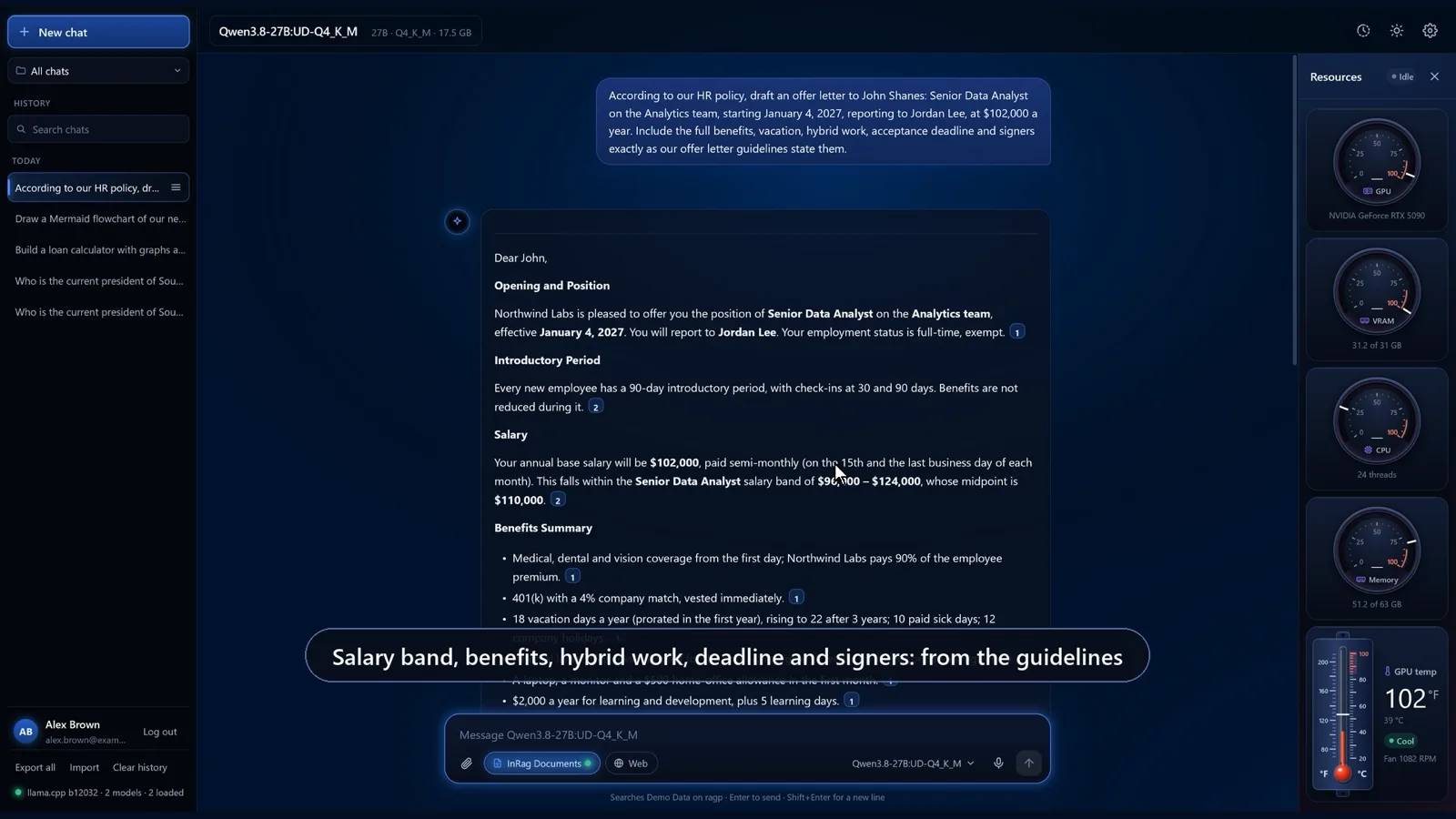
From the getting-started video (Windows), using a demo InRag collection of fictional company documents.
Get help with your next step
Use the Mac guide or Windows guide for settings and troubleshooting. For help with your setup, email support@magicsoft.com.